Back to all features
HR

Time tracking

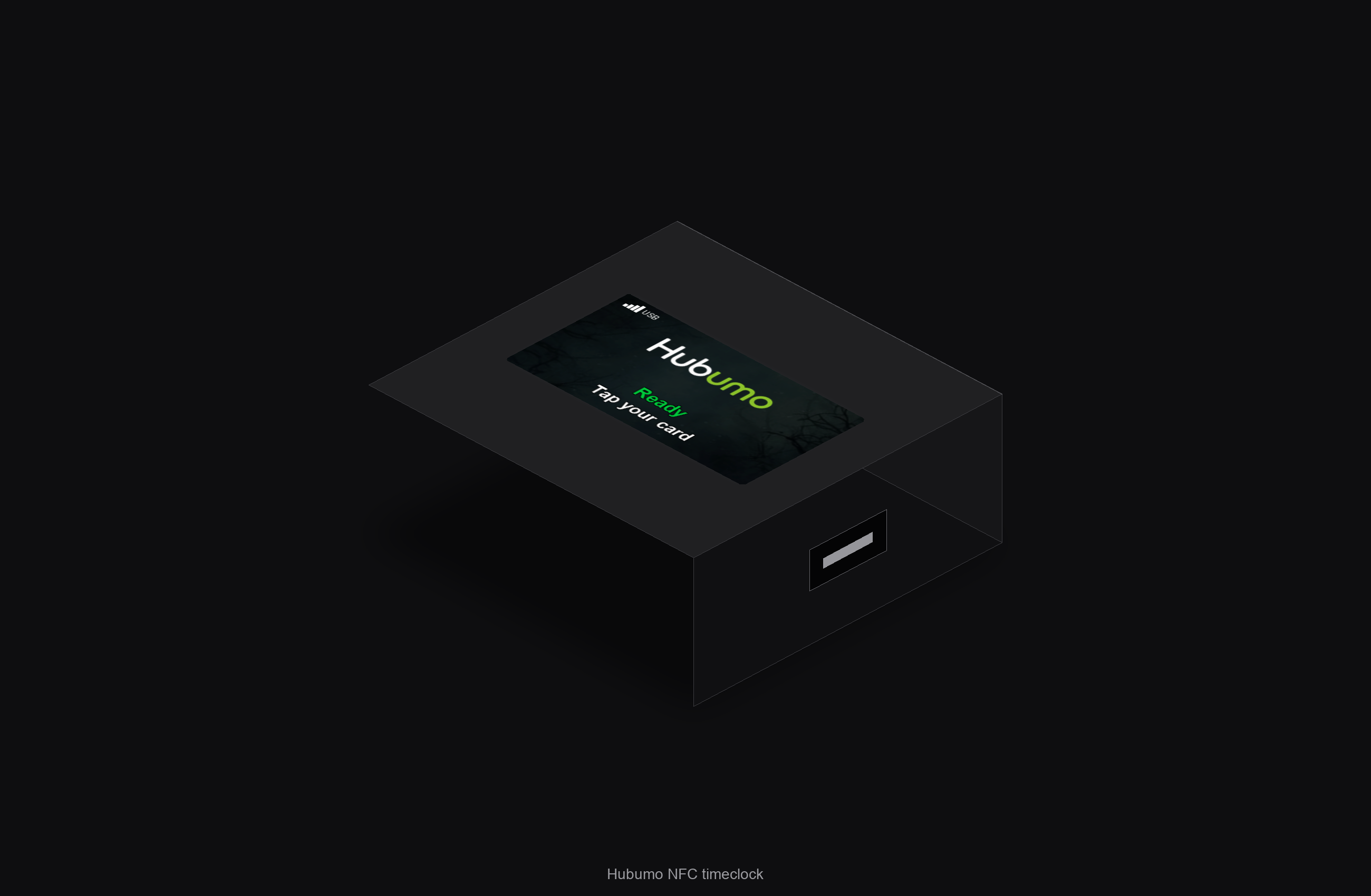
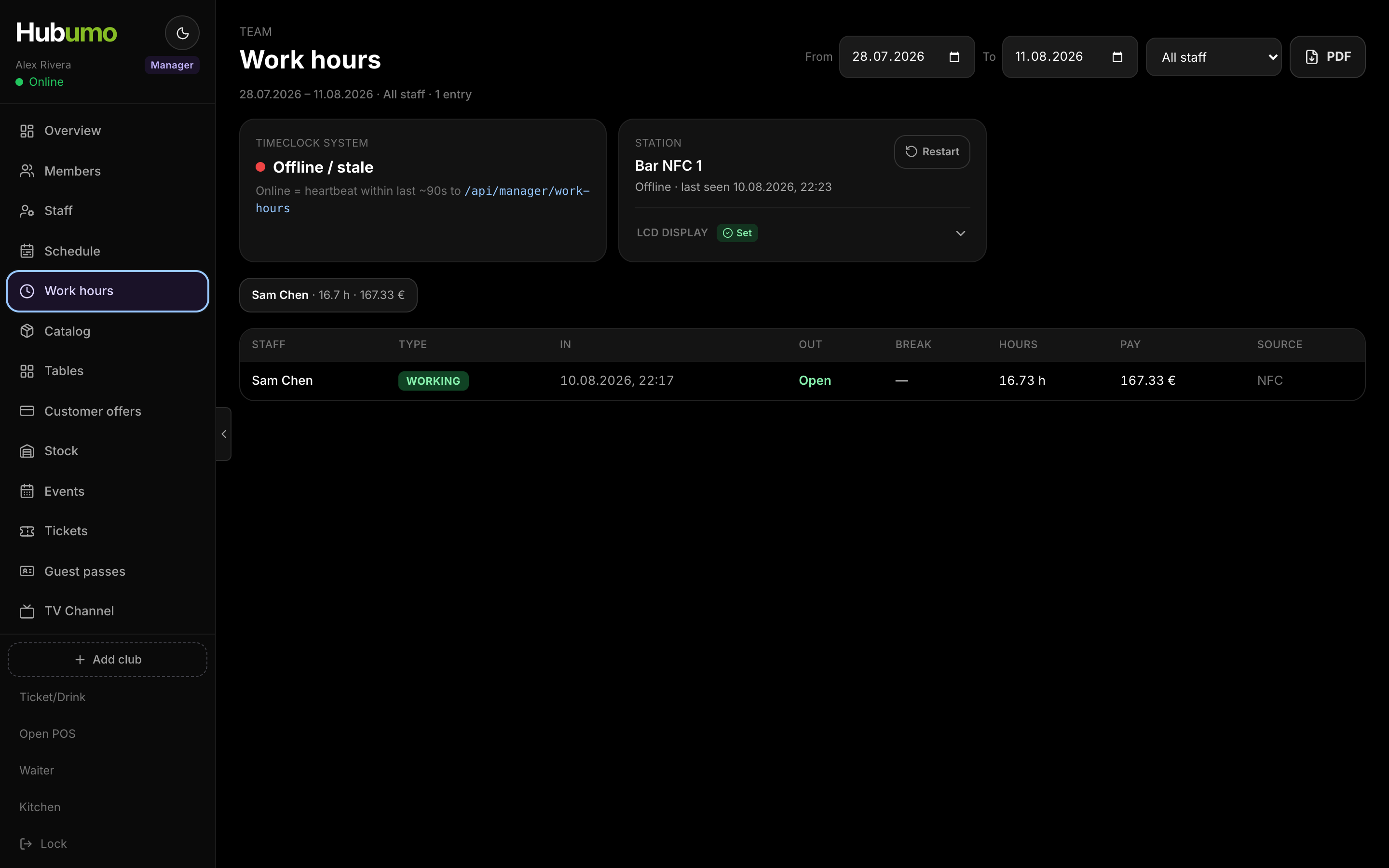
Work Hours is Hubumo’s NFC time-tracking module. Hubumo stations record staff clock-ins and clock-outs, while Manager calculates total hours, estimates pay using hourly rates recorded in Staff, and exports PDF reports. The dashboard shows whether the time-clock system and each station are online, offline, or not recently connected. It also provides restart controls and LCD display settings, including Wi-Fi, background images, auto-cropping, 180-degree rotation, and background filters. The idle screen displays the wallpaper, Hubumo mark, Ready, and Tap your card. The same NFC cards can also be used for Staff app access through NFC or roster-based access.
What Hubumo can do

Explore the Work Hours tools for NFC time tracking, station management, and staff access.

  • Station idle screen — wallpaper, Hubumo logo, Ready, and Tap your card
  • Tap your NFC card to clock in, pause, or resume; hold for about 1.5 seconds to clock out
  • Time-clock and station status — online/offline state, last connection, and restart controls
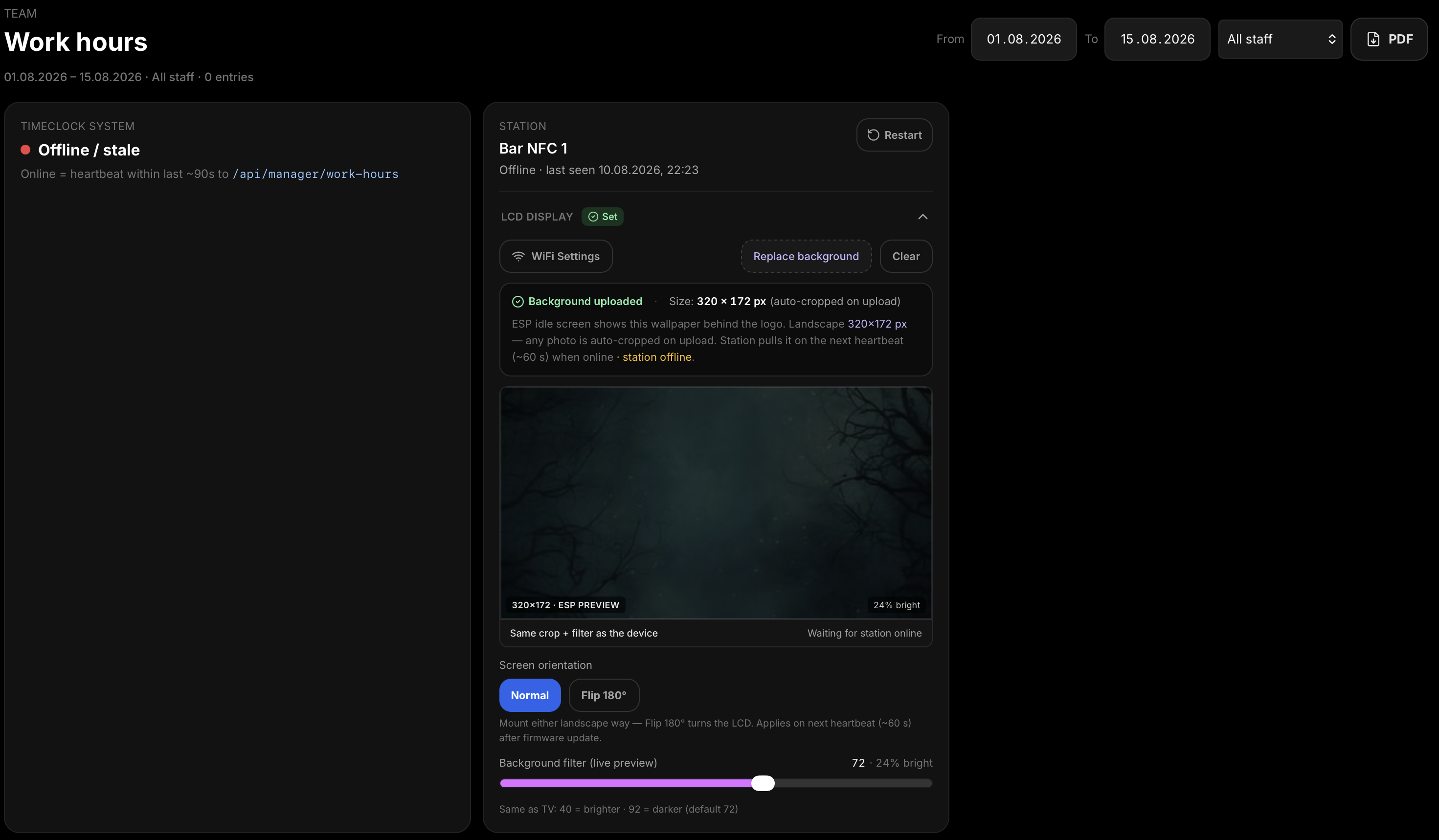
  • LCD display settings — Wi-Fi, background image, automatic cropping, 180-degree rotation, and background filter
  • Work-hours reports — select a date range and staff members, review entries, hours, and estimated pay, then export a PDF
  • Staff access — link NFC tag identifiers to staff accounts and choose Off, NFC, or roster-based access

How Work Hours works

Clocking in and out

Staff tap their NFC card at the station to clock in, pause, or resume a shift. Holding the card on the reader ends the shift. When idle, the station displays Ready when it is online, together with Tap your card, the venue background image, and the Hubumo logo.

Station and display settings

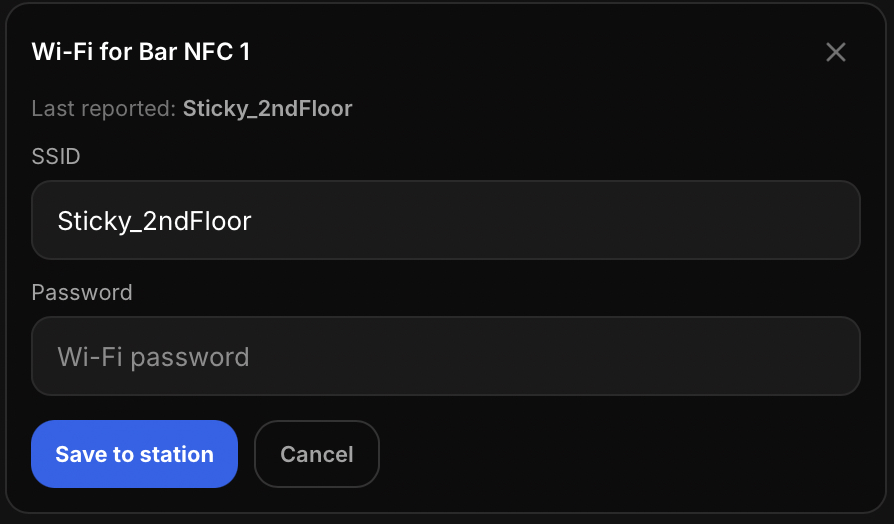
Each station sends status updates to Manager approximately every 60 seconds and should appear online within about 90 seconds. Restart a station if it stops responding. In Wi-Fi settings, enter the network name and password, then save the settings to the station. You can also upload or replace the 320 × 172 background image, rotate the display by 180 degrees, and adjust the background filter. The background filter uses the same scale as the TV display: 40 is brighter, 92 is darker, and 72 is the default.

Staff app access

In Settings → Staff app access, choose NFC-based or roster-based access. POS, Waiter, Kitchen, and Door remain locked until an authorised NFC action is completed at a Work Hours station or with an NFC-enabled Manager phone. Manager access remains available to authorised managers.

How Work Hours works — step by step

  1. 1
    Enable Work Hours

    Enable the Work Hours module from Manager → Subscription.

  2. 2
    Register NFC tags

    In Staff, select Read, then tap the NFC tag on a Work Hours station. You can also use Web NFC where supported.

  3. 3
    Clock in and out

    When the station displays Ready and Tap your card, staff tap their NFC card to clock in, pause, or resume, and hold it on the reader to clock out.

  4. 4
    Export work-hours reports

    In Work Hours, select the date range and staff members, then export a PDF showing working hours and estimated pay.

Screens and workflows

Real Hubumo screens from this module — each image shows a distinct workflow, not a repeated shot.

Station display — LCD, Wi-Fi, background image, and 180-degree rotation
Wi-Fi settings — save the network details to the station
Hubumo NFC time-tracking station
Request a demo

Ready to run your venue with Hubumo?

Tell us about your venue, your locations, and what you want to improve. A member of the Hubumo team will contact you shortly.

Fields marked with * are required.

By submitting this form, you agree that Hubumo may use your information to respond to your enquiry. See our Privacy Policy.

Hubumo

Explore more modules