Catalogue
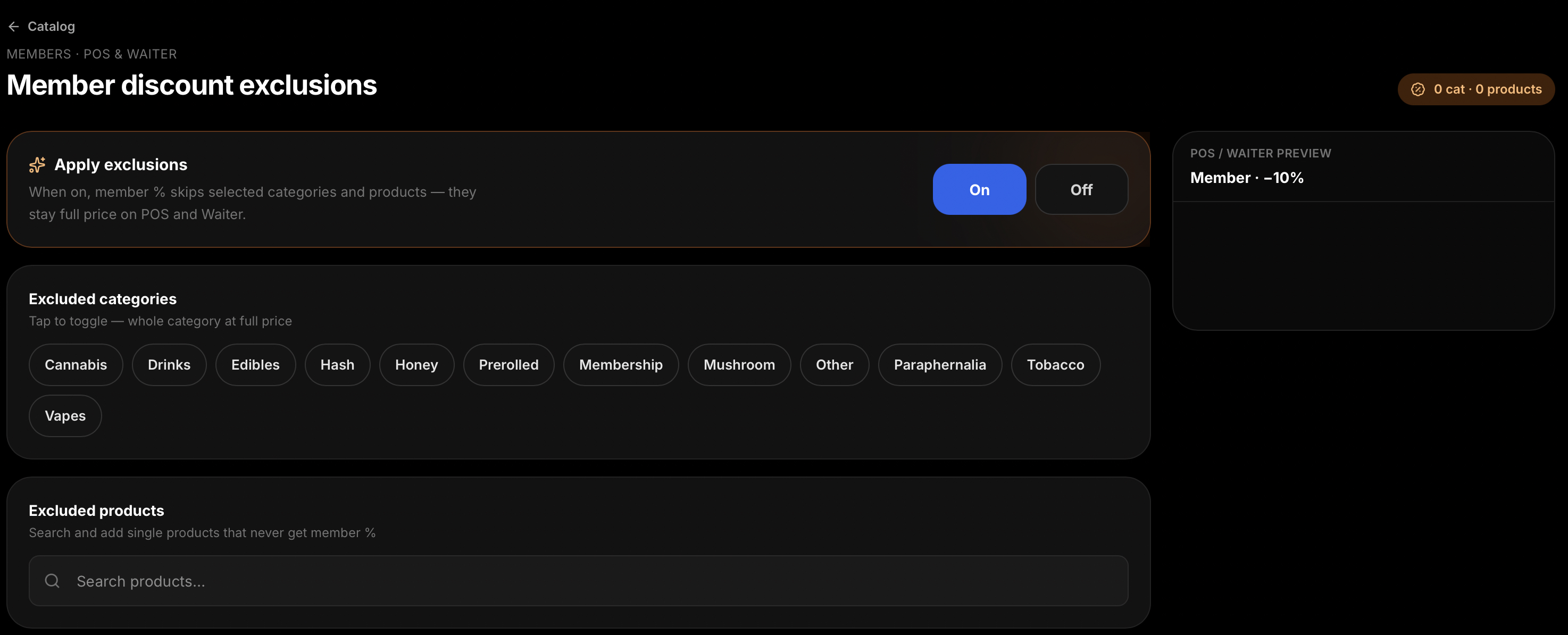
Add categories and products, set Happy Hour (for example 20% from 17:00–19:00, members only) and Multi-buy rules. Member-discount exclusions keep selected categories or products at full price when a member is on the check.
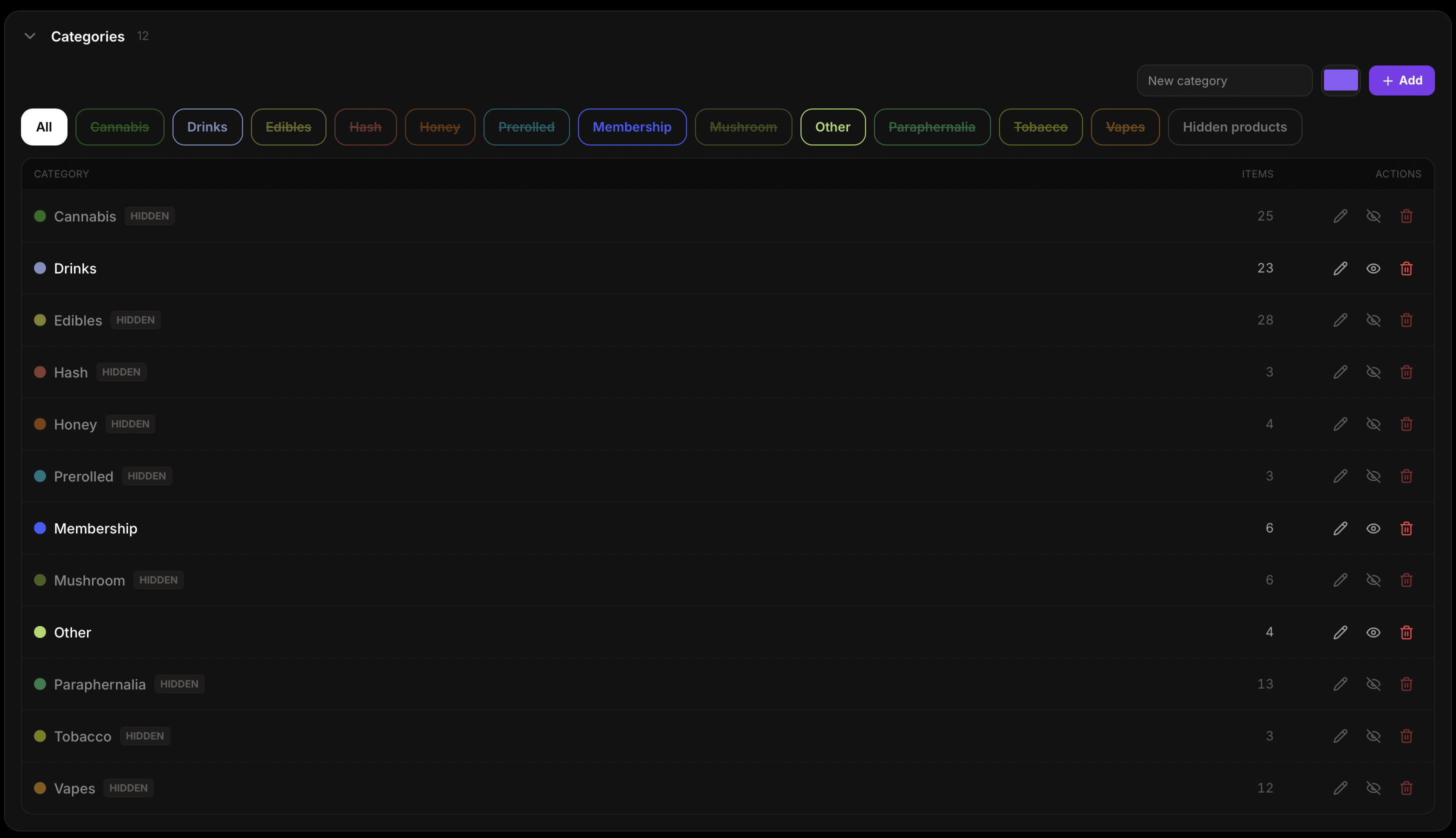
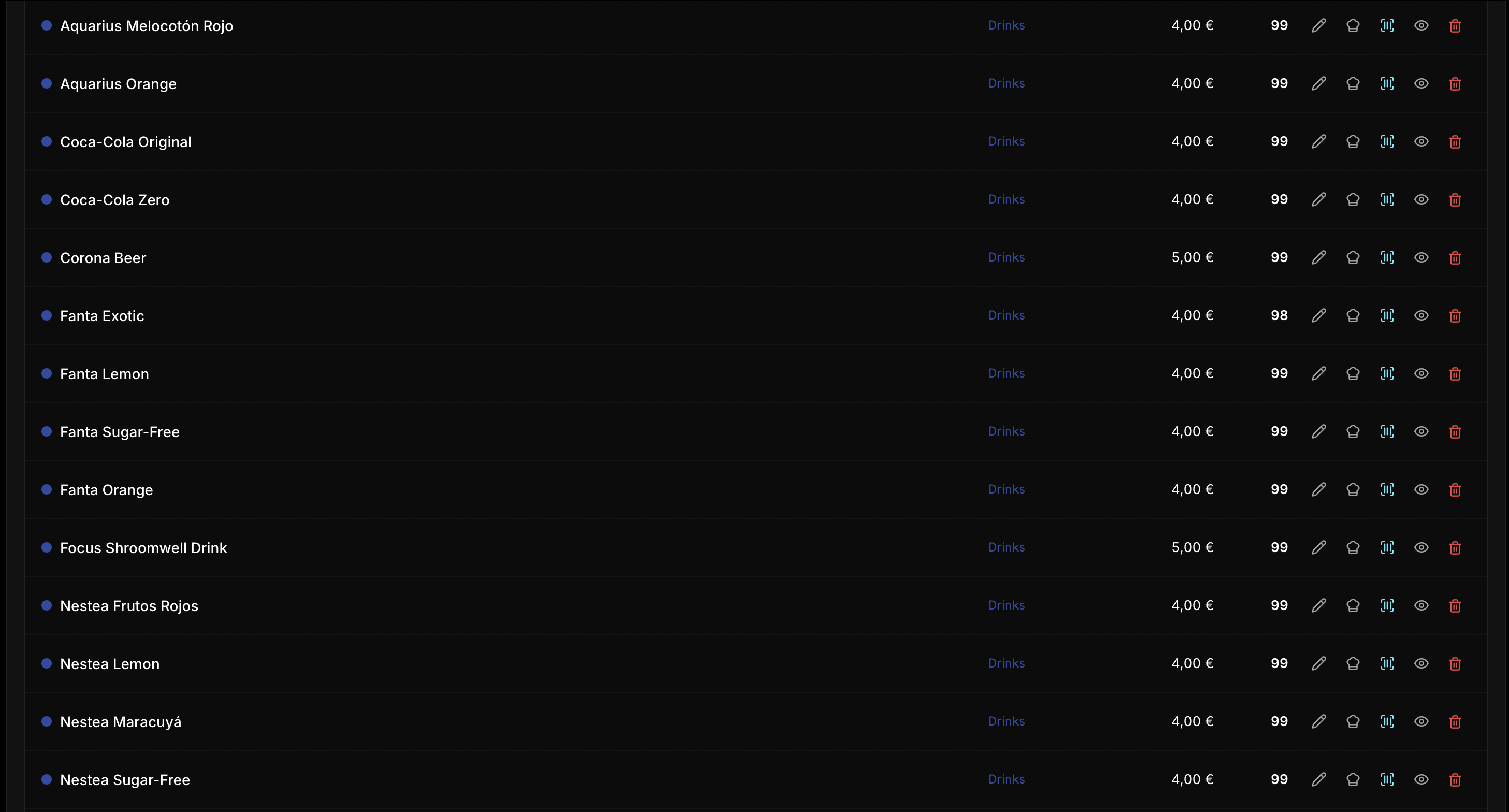
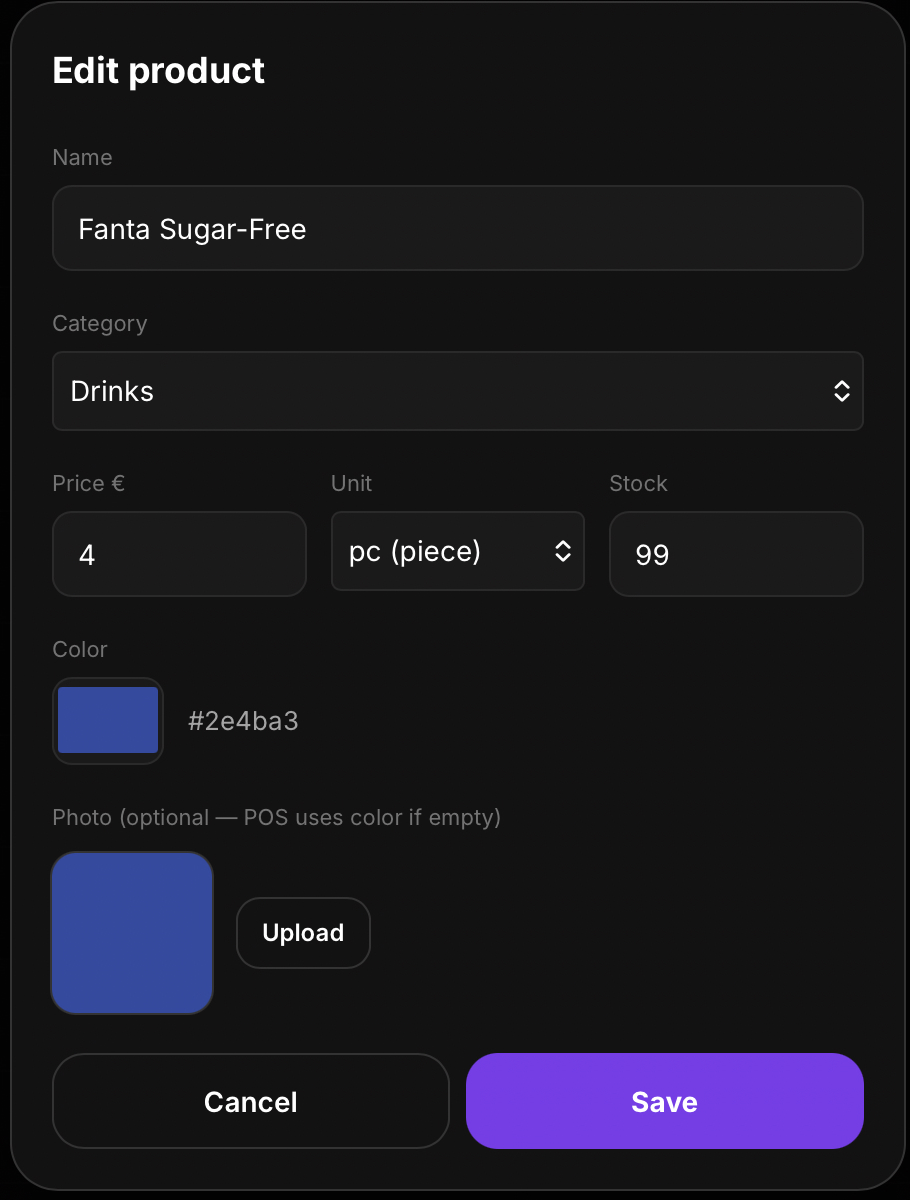
The POS menu → Catalogue is the live product catalogue for the bar and Waiter app. Manage categories and products, including prices, units, colours or photos, and stock levels. Configure Happy Hour pricing, multi-buy offers, and member-discount exclusions. From the Catalogue, you can also print product codes and table QR stickers. The Inventory page transfers stock between the Warehouse and POS, supports quantity adjustments, PDF exports, and stock history. The same inventory figures are used by the POS and Waiter app.
Explore the catalogue and inventory tools currently available in Hubumo.
Add categories and products, set Happy Hour (for example 20% from 17:00–19:00, members only) and Multi-buy rules. Member-discount exclusions keep selected categories or products at full price when a member is on the check.
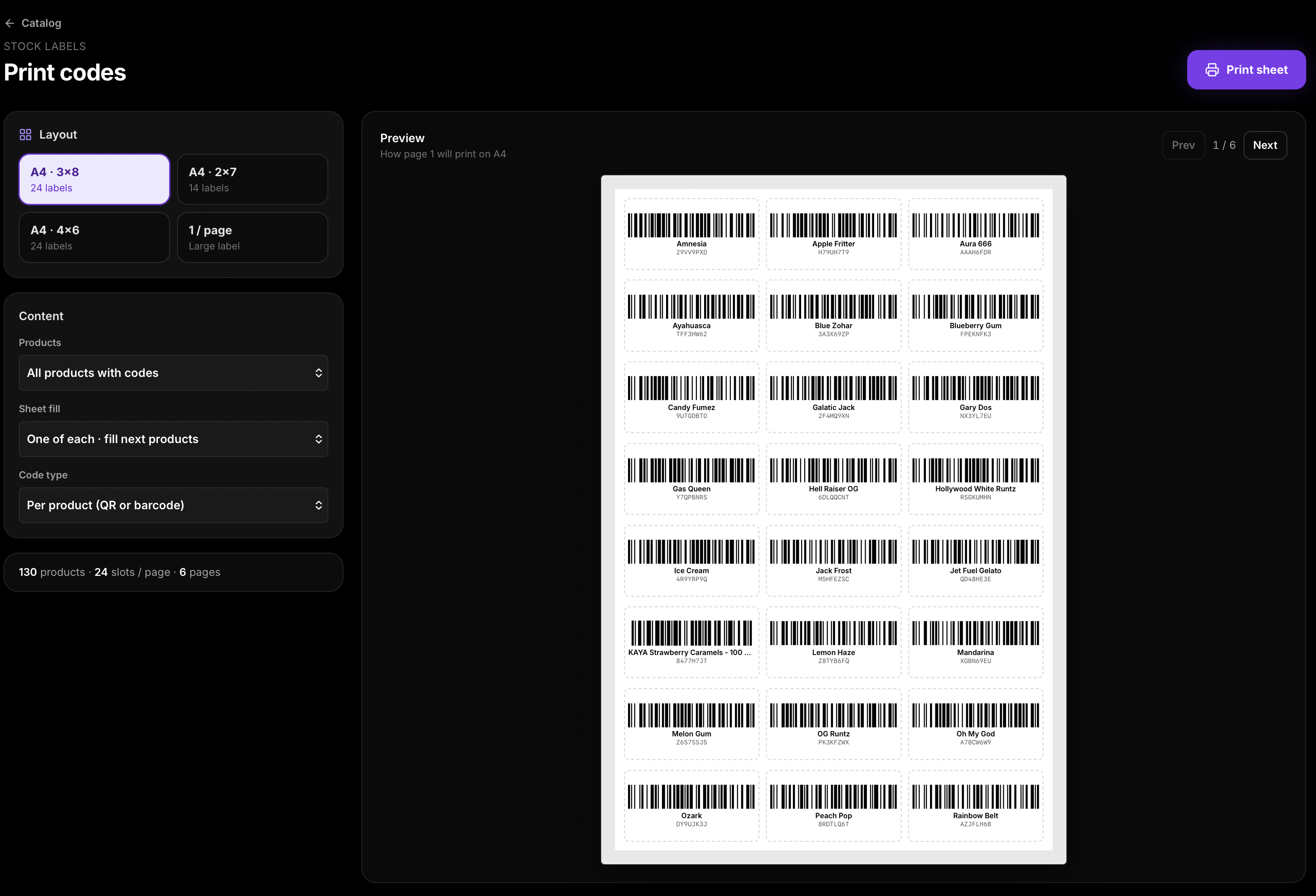
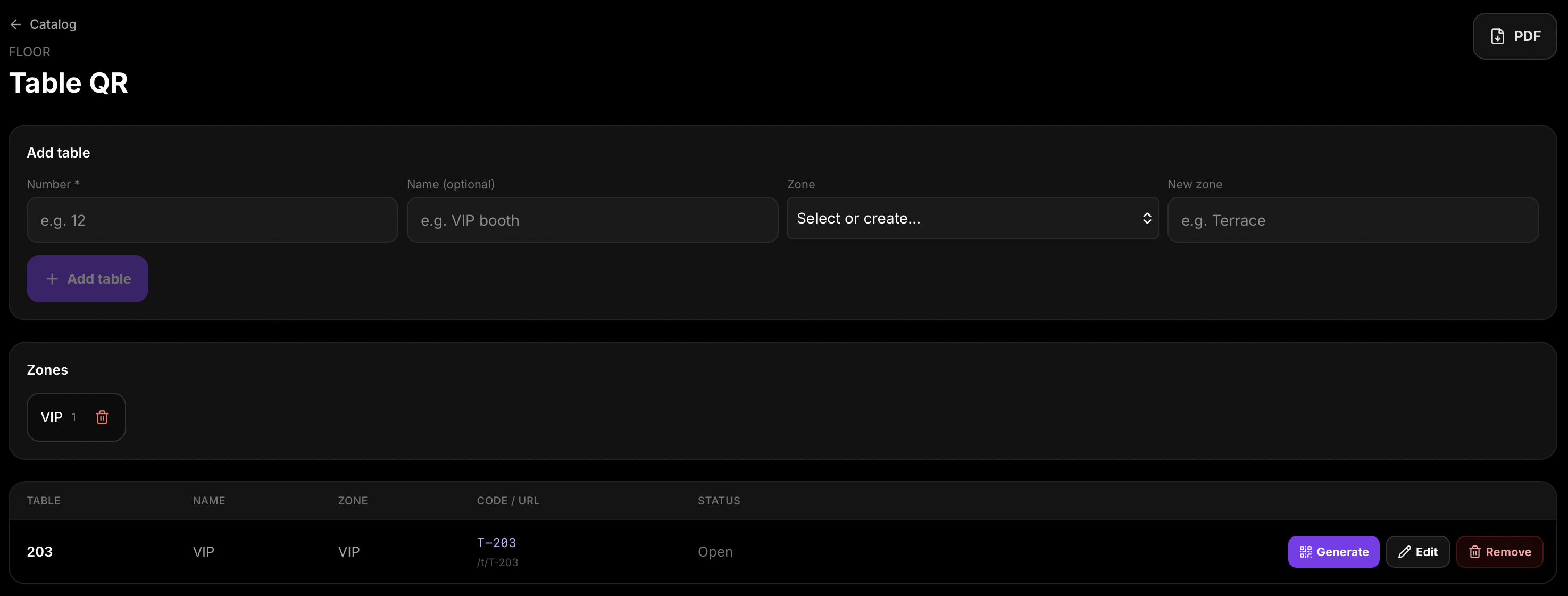
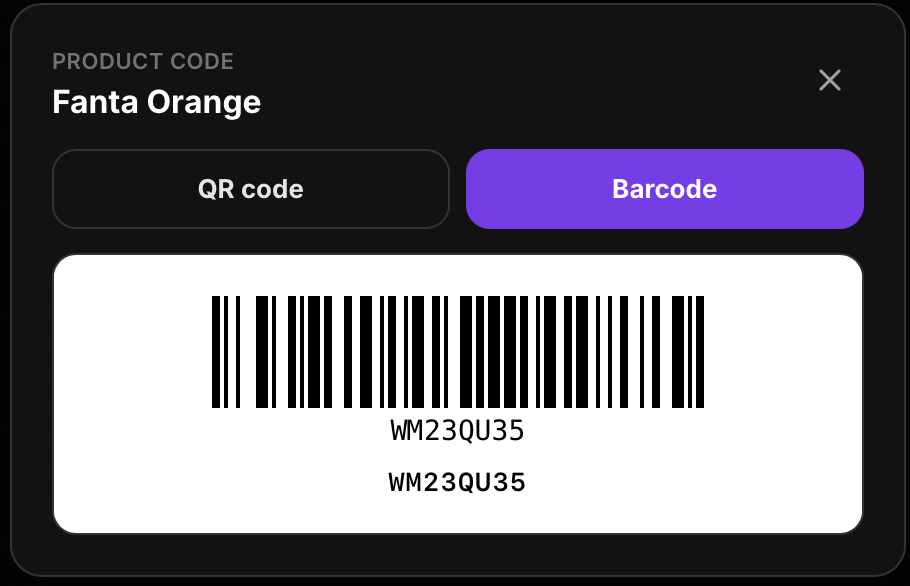
Print codes builds A4 sheets with a QR code or barcode per product. Table QR under Catalogue manages floor table numbers, zones, and printable PDFs — the same layout POS Table service uses.
Transfer inventory between Warehouse and POS with search, PDF exports, and a stock history log that shows sales and manual moves with staff.
Manager → Catalogue → categories, then products.
Happy Hour, Multi-buy, and Member discount exclusions.
Stock transfer, Print codes, and Table QR as needed.
Real Hubumo screens from this module — each image shows a distinct workflow, not a repeated shot.

Tell us about your venue, your locations, and what you want to improve. A member of the Hubumo team will contact you shortly.