Staff mirror
As the bartender builds and pays a check, the guest screen follows — so totals and thanks are visible without turning the till around.
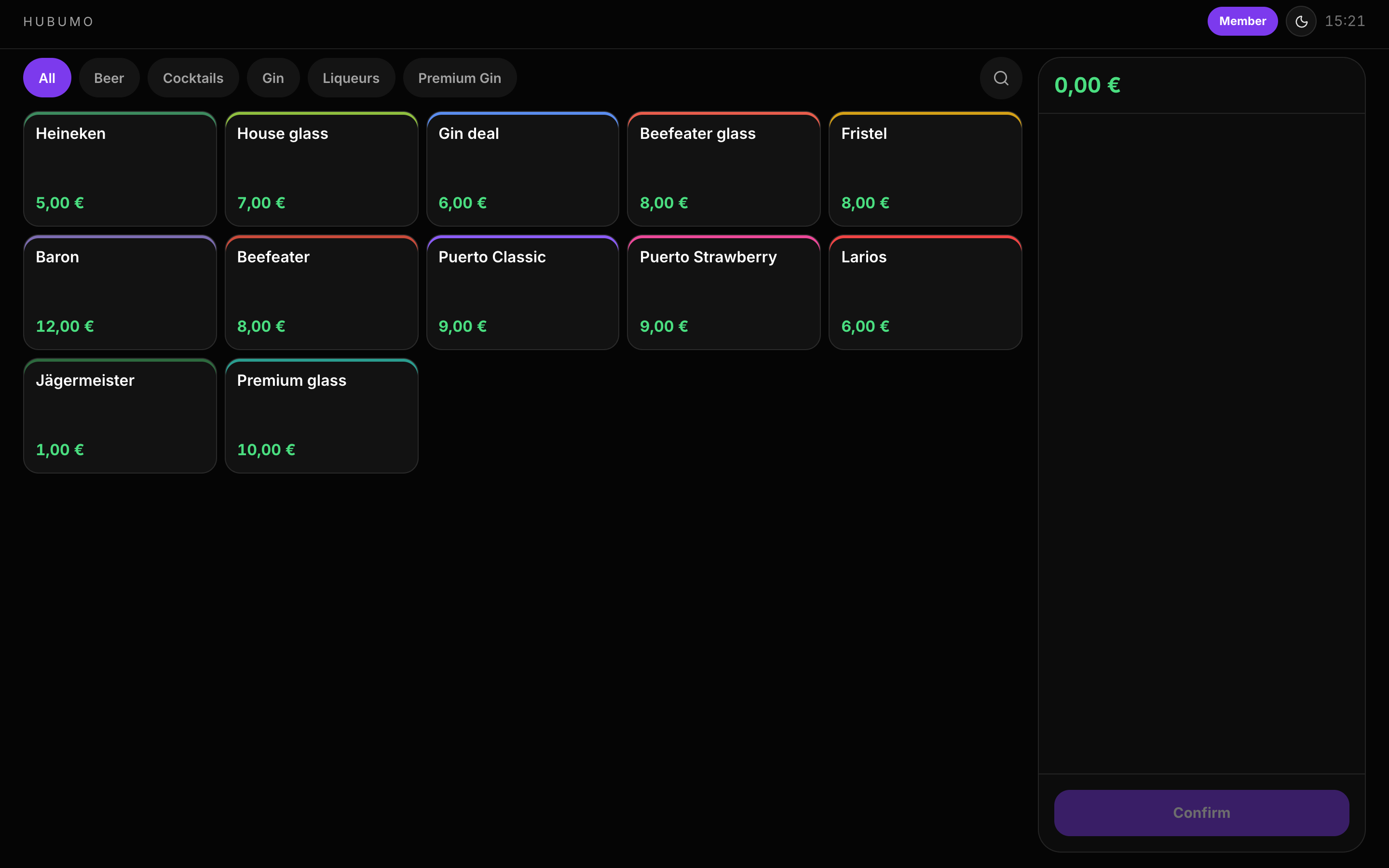
Customer display runs on a phone/tablet facing the guest. It mirrors staff cart / paying / thanks, or lets guests build an order and send it to the bar. Category row includes a search control; when the pack or Settings toggle is off, it shows the venue logo splash only.
Concrete capabilities from the live Hubumo build — not a generic feature list.
As the bartender builds and pays a check, the guest screen follows — so totals and thanks are visible without turning the till around.
Guests tap products, optionally attach a member pass code, and Confirm. The bar POS pulls guest orders into the till.
Turn on Customer display in Manager Settings → Displays.
Open the guest display on the second phone or tablet.
Bar POS must be unlocked so the display stays live.
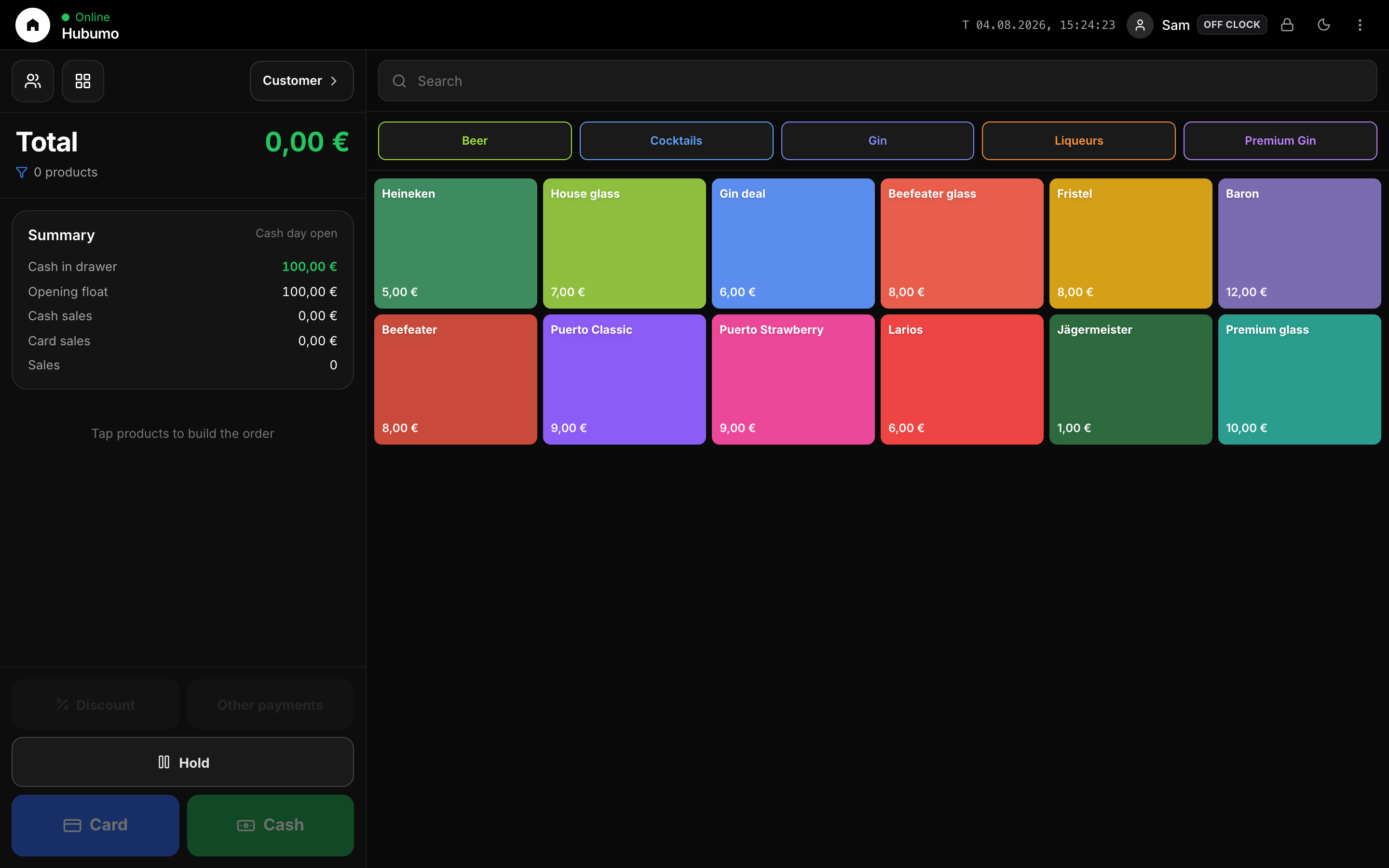
UI previews of the real surfaces — till, door, manager, displays — so you can see options and steps before opening the app.
Log in to Manager to run the night, or browse every other module from the full features list.