Back to all features
TV and venue screens

TV and venue screens

TV Channel runs club displays from Manager. Configure venue location, weather, and FireScope, schedule ad breaks, and manage every screen from one place. Add screens, choose a YouTube or HLS stream, monitor device and kiosk status, and restart connected TVs remotely. Open a screen as a kiosk on a Raspberry Pi or browser. On air, guests see the live stream with a welcome ticker, weather, and social or advertising panels.

What Hubumo can do

Run every venue screen from Manager — streams, weather, and promotions.

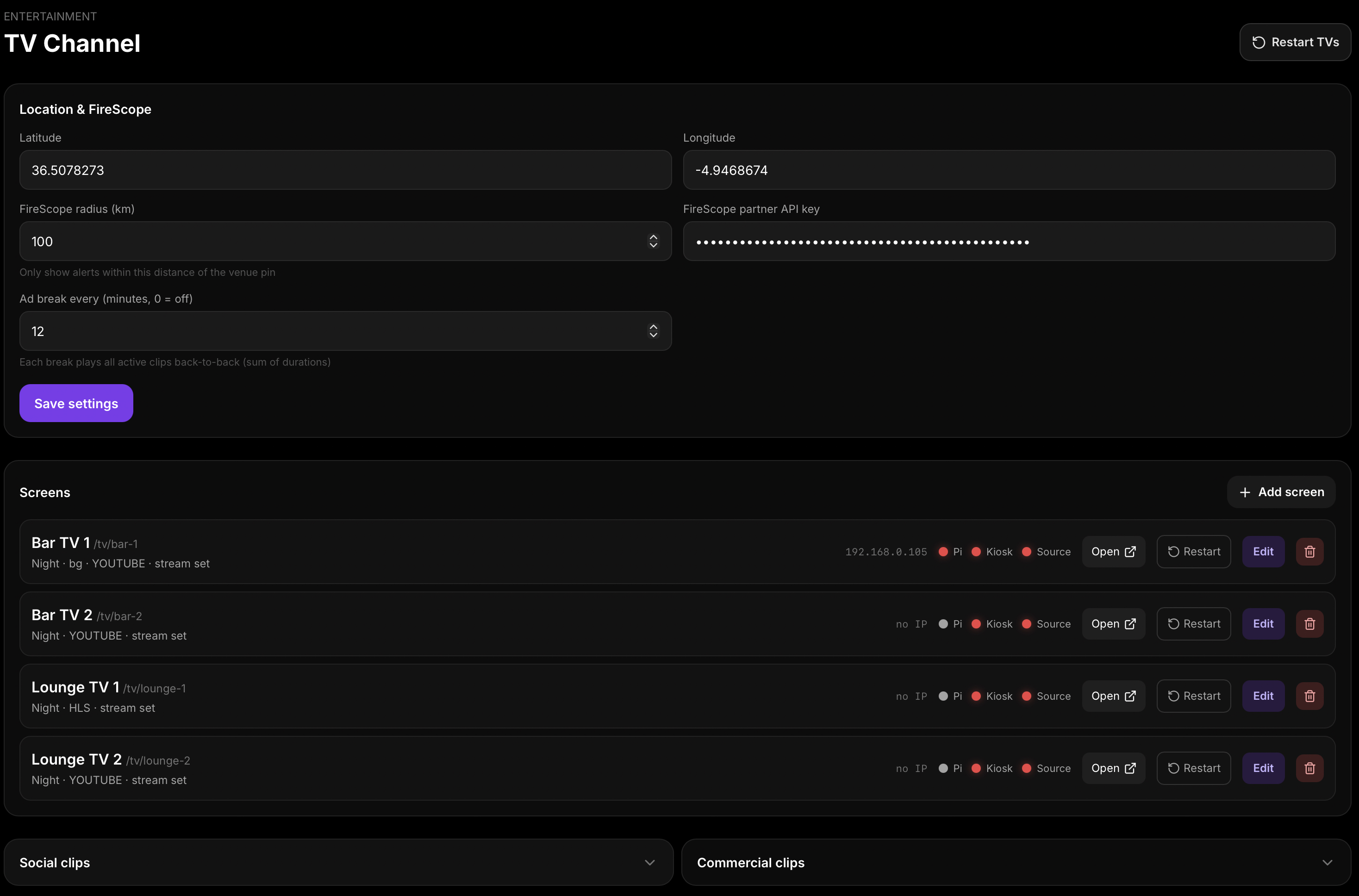
  • Location and FireScope — set venue location, service radius, and partner API key
  • Screens list — add screens; monitor device, kiosk, and source status; Open, Restart, or Edit
  • Restart connected TVs and manage social-media and advertising clip libraries
  • Kiosk heartbeat — Raspberry Pi status turns green when the device is connected
  • Ad breaks every N minutes (set to 0 to disable); active clips play back-to-back
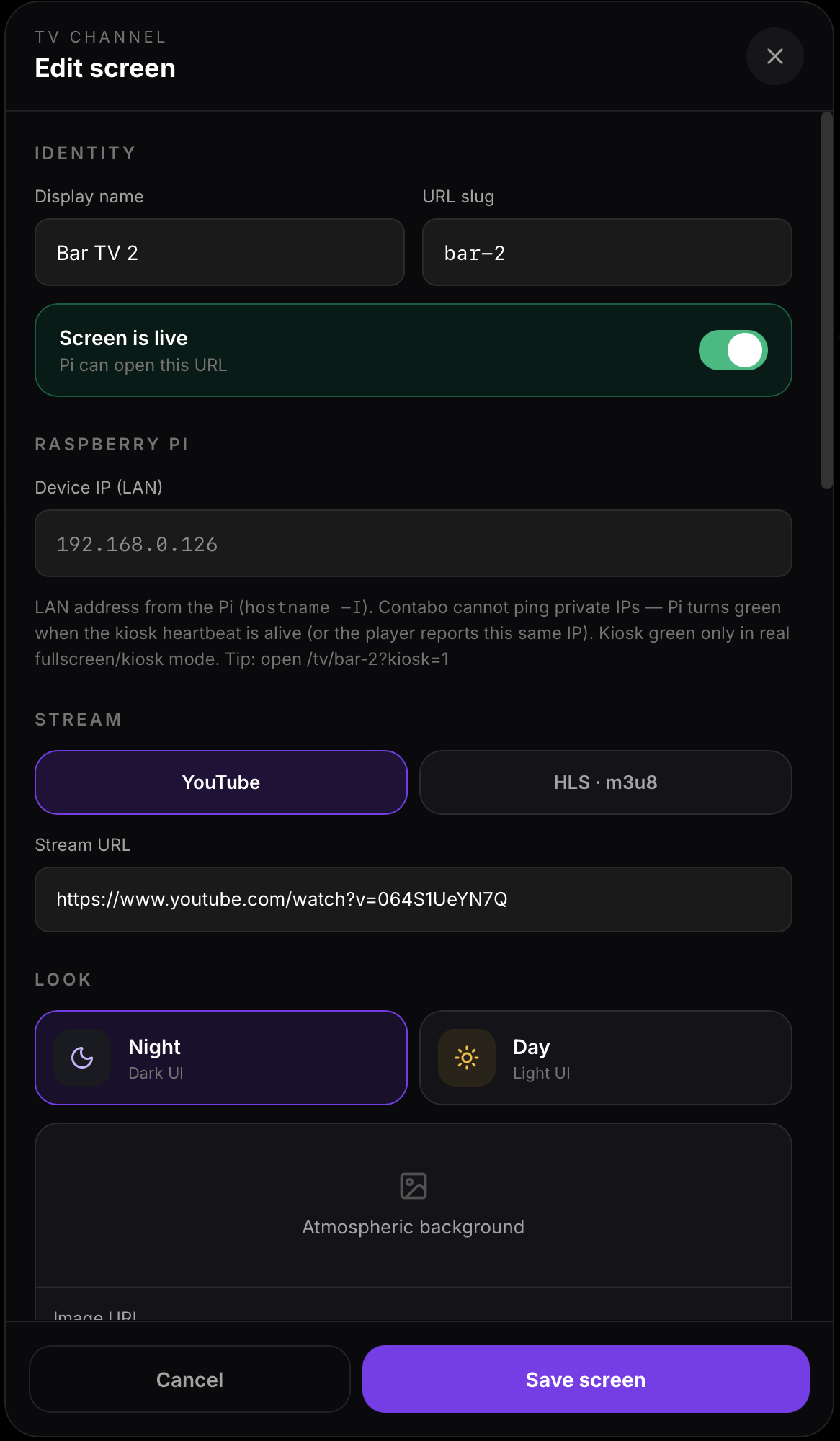
  • Edit screen — live toggle, LAN IP, YouTube or HLS source, Night or Day look, atmospheric background
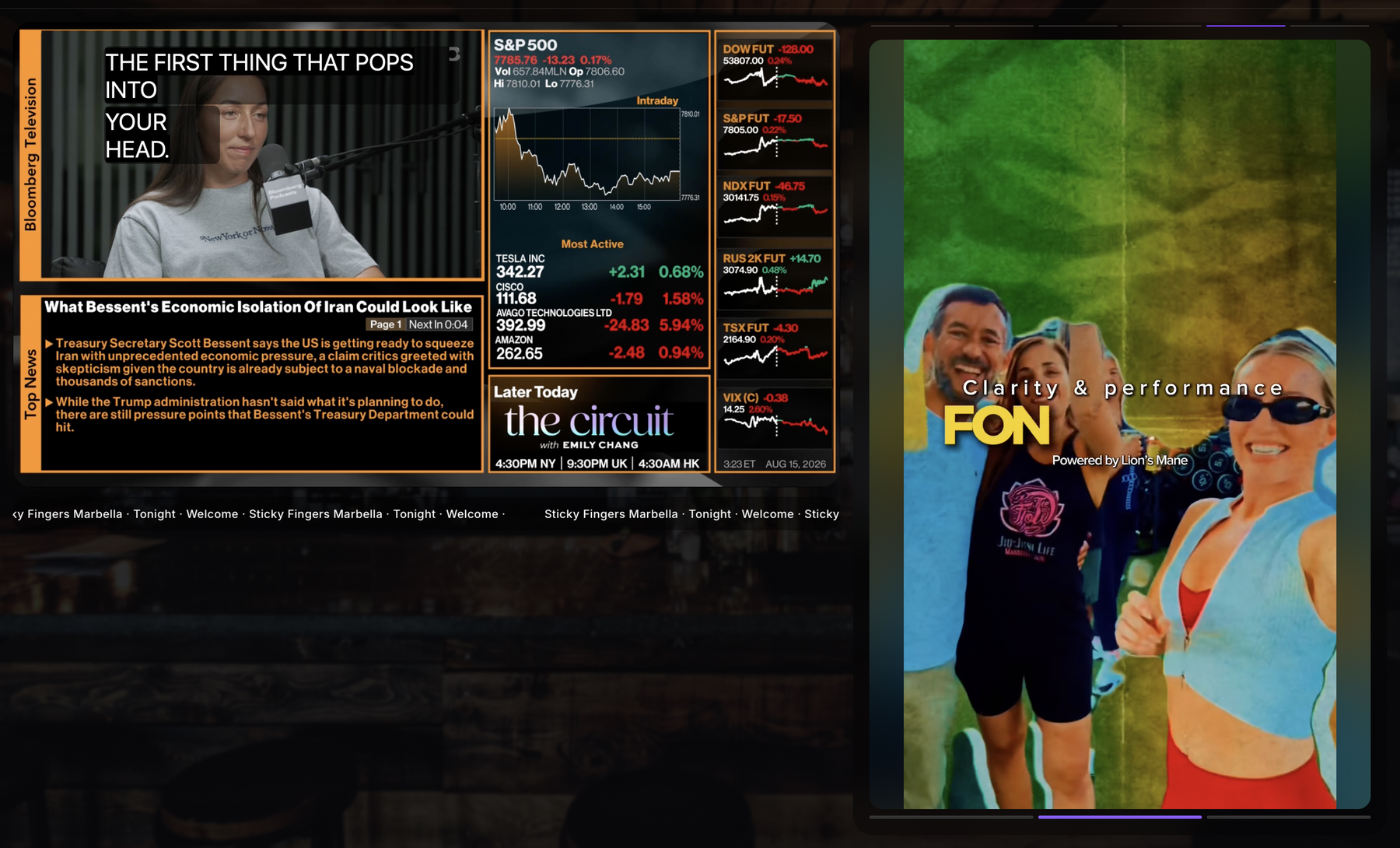
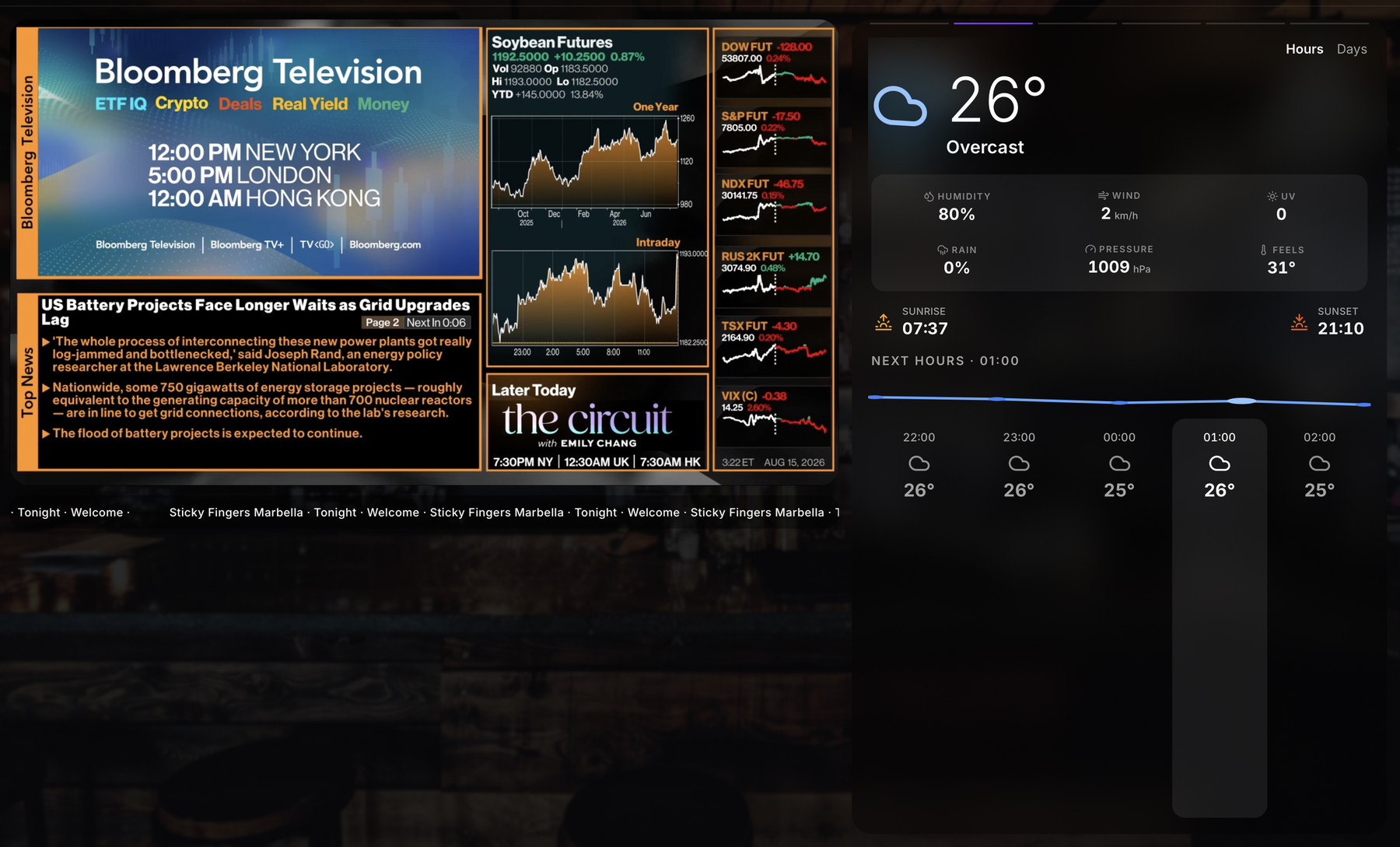
  • On-air display — live stream with welcome ticker, weather, and advertising or social panels

How TV Channel works

Configure TV Channel in Manager

In Manager, open Entertainment → TV Channel. Set the venue location and configure FireScope so location-based alerts use the correct area. Add each physical screen with a screen name, screen URL, stream source, and optional local-network IP address for status monitoring. Restart an individual screen or restart all connected TVs.
What appears on the screen

The player displays the live stream from YouTube or HLS, rotating information panels, a venue welcome ticker, weather based on the venue location, and social-media or advertising clips according to the configured advertising schedule. When a screen is turned off or the stream is not live, the device displays the configured logo screen.

How TV Channel works — step by step

  1. 1
    Save location

    Set the venue location and configure FireScope, then save the settings.

  2. 2
    Add screen

    Select Add screen, enter the screen name, screen URL, and stream source, then select Save screen.

  3. 3
    Open the screen on a Raspberry Pi

    Open the screen URL with ?kiosk=1 to launch it in full-screen kiosk mode.

Screens and workflows

Real Hubumo screens from this module — each image shows a distinct workflow, not a repeated shot.

TV Channel — screen management and FireScope settings
On-air display — live stream, information panels, and weather
Edit screen — stream and display settings
On-air display — live stream and advertising content
Request a demo

Ready to run your venue with Hubumo?

Tell us about your venue, your locations, and what you want to improve. A member of the Hubumo team will contact you shortly.

Fields marked with * are required.

By submitting this form, you agree that Hubumo may use your information to respond to your enquiry. See our Privacy Policy.

Hubumo

Explore more modules