Back to all features
Venue operations

Bar POS

Bar POS is your main till. Staff unlock securely, open the cash day, sell from the live catalog, take cash, card or member balance, apply discounts and deals, hold bills, link tables from waiter, and optionally drive a second-screen customer display.

What Hubumo can do

Everything your bar team needs on one till — from unlock to cash-up.

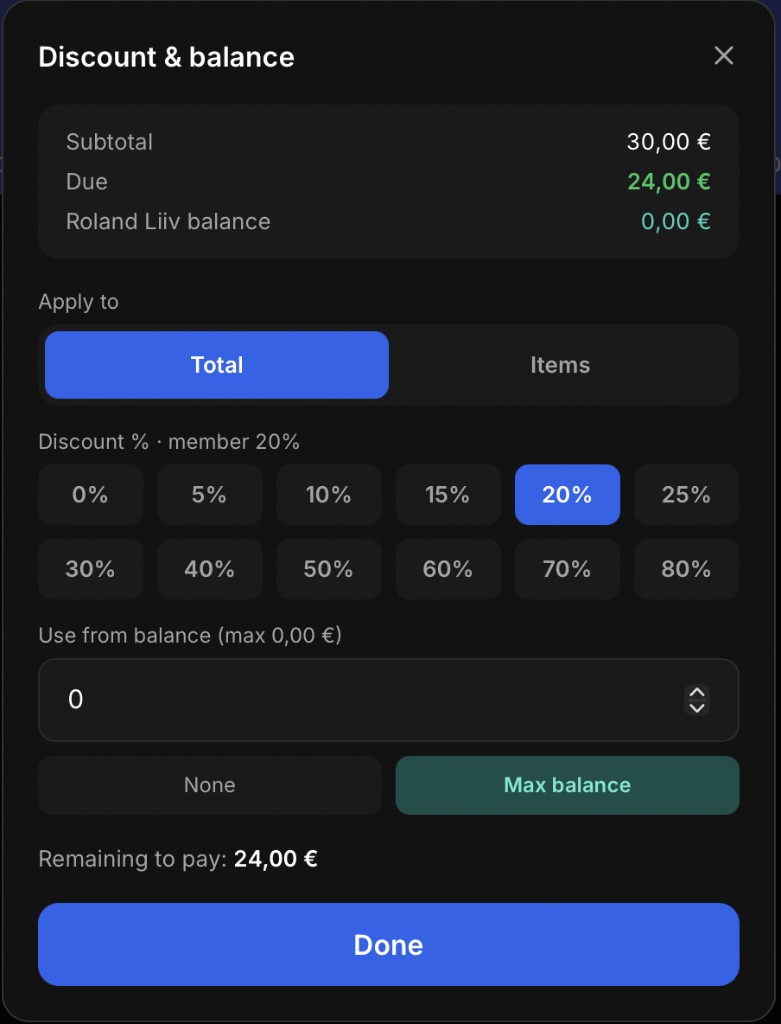
  • Apply discounts to the entire order or to selected items using percentage shortcuts. Enable this feature in Settings.
  • Create multi-buy offers such as “Buy X, Get Y Free” and apply them automatically to eligible items in the cart.
  • Sell products by value or weight. Enter a price and automatically calculate the equivalent grams or kilograms. Enable this feature in Settings.
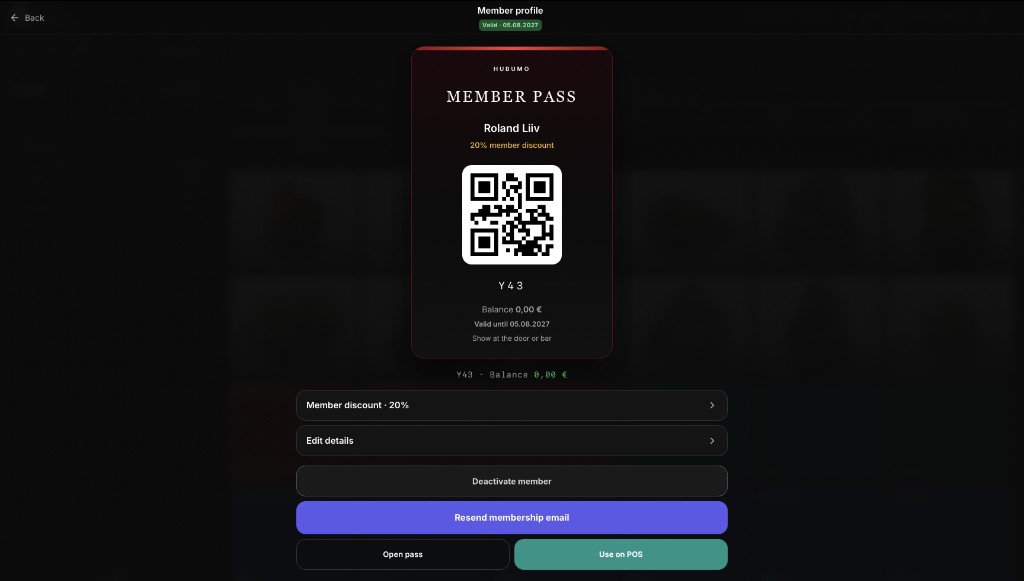
  • Apply member discounts only to eligible products, while automatically excluding products that do not qualify.
  • Choose how staff access the system: disabled, NFC-based, or roster-based access before PIN entry. Configure this in Settings.
  • Pair staff devices using a QR code so that only approved tablets can unlock the POS when device pairing is enabled.
  • Allow manager-only NFC unlocking, even when general staff access is disabled.
  • Lock the POS with a staff PIN or directly from the header.
  • Manage the daily cash-up with opening float, expected drawer balance, and variance reporting.
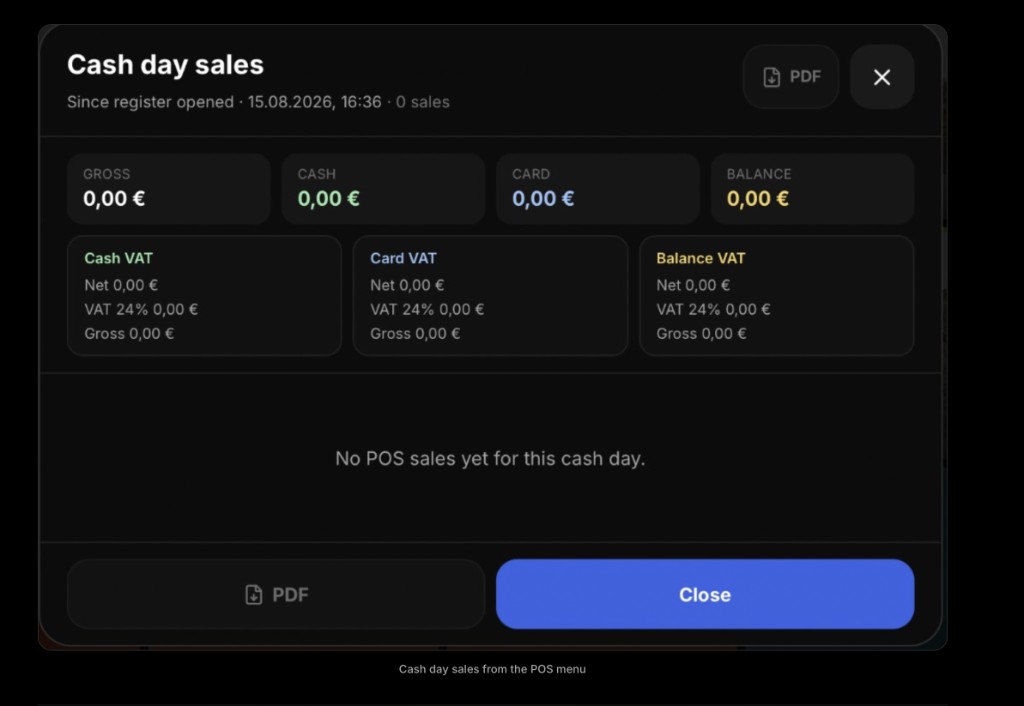
  • View cash-day sales from the Staff menu.
  • Customize product tiles and category labels using the same catalog as the Manager dashboard.
  • Apply Happy Hour pricing automatically during configured time periods.
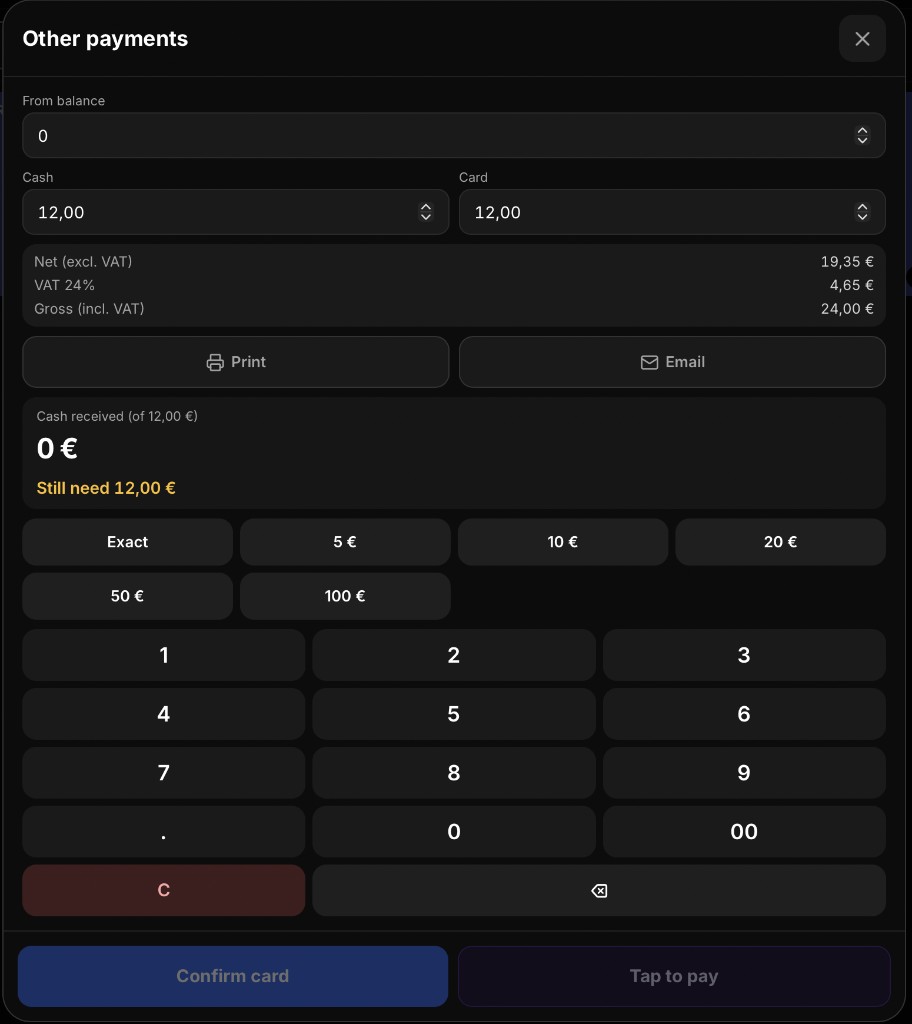
  • Apply a member balance to the bill and split the remaining payment between cash and card.
  • Support SumUp and Stripe card payment handoff when configured.
  • Confirm card payments on an external terminal or accept tap-to-pay payments on a paired Android SoftPOS phone.
  • Print and/or email the receipt after payment.
  • Put orders on hold and resume them later. The table-service map highlights waiter notifications.
  • Create kitchen tickets automatically when food items are added to the cart.
  • Show clear membership-status badges at the point of sale.
  • Enter fractional weights or pour quantities on the cart keypad; tap or ± adds whole units.
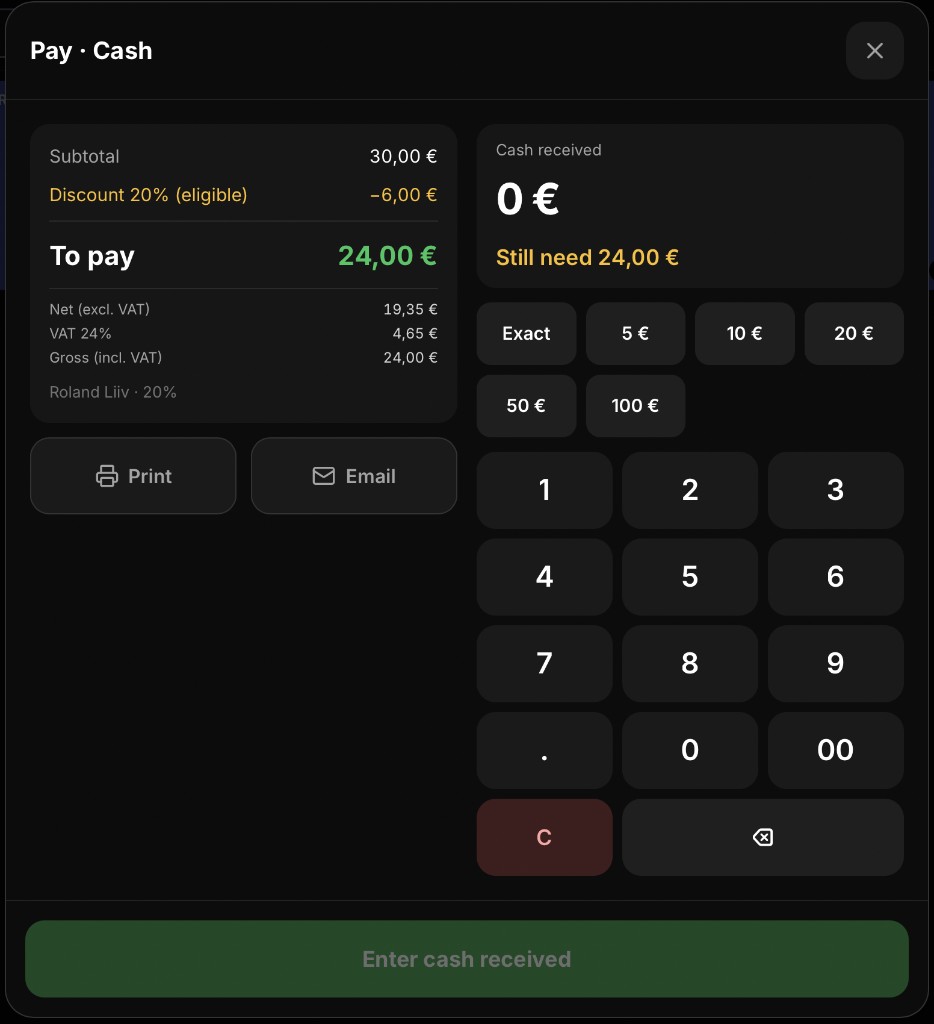
  • Payment screens show net, VAT, and gross totals.
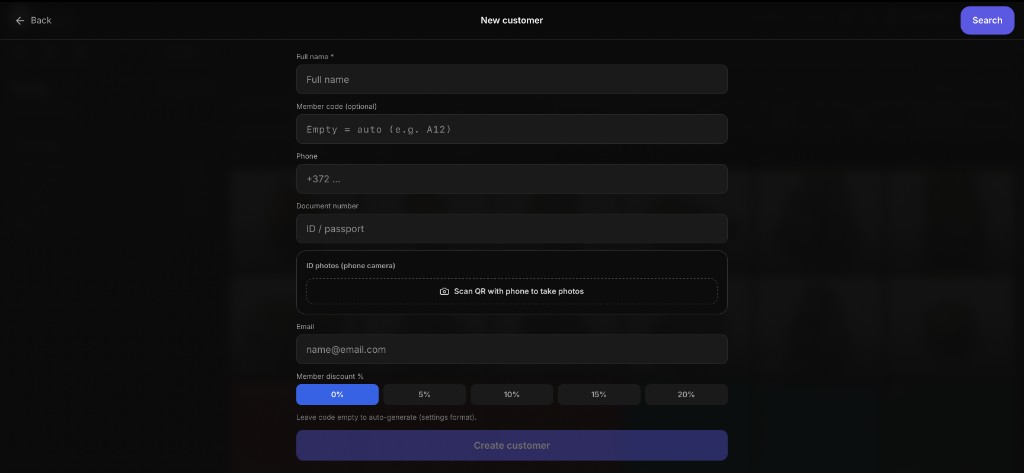
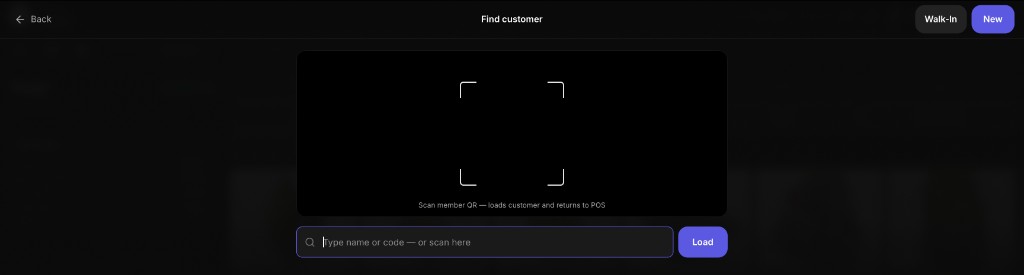
  • Find or create a member using a phone number, QR code, or approved ID photo, then display the relevant offers when enabled.
  • Connect a second customer-facing display to show the cart and order details.

how Bar POS works

Cash day

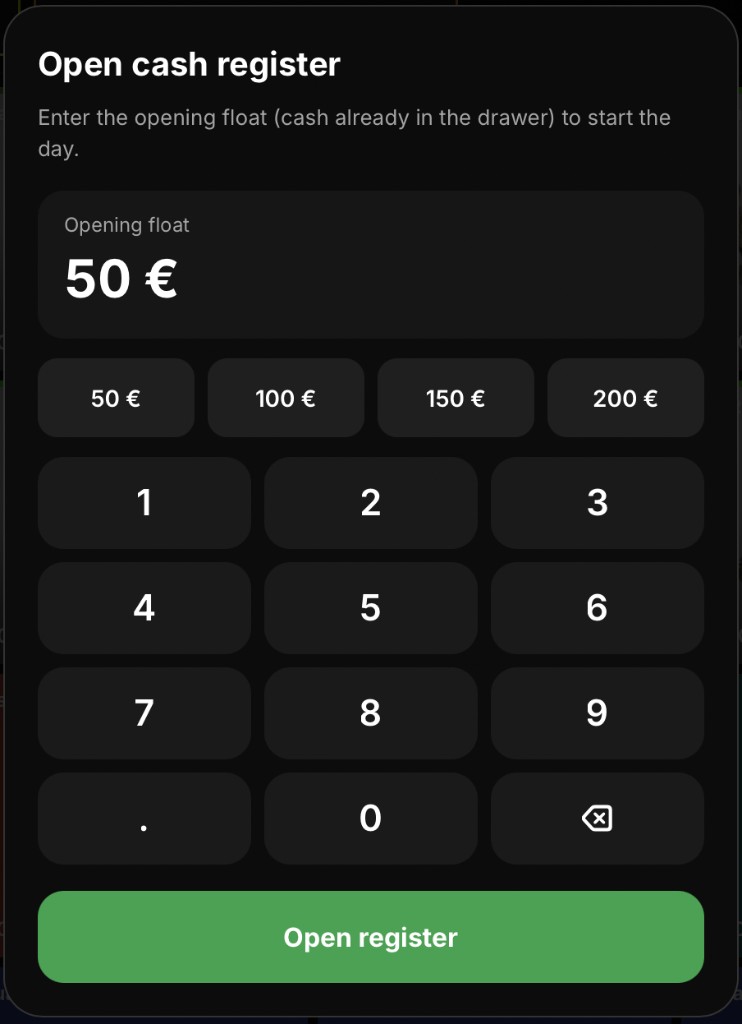
Sales that hit the till need an open register. Opening float is entered on a money keypad; closing asks for counted cash vs expected (float + cash sales), shows card and balance totals, and can be blocked if holds, open tables, QR orders or cart items remain.

  • Open cash register — choose from float presets (€50, €100, €150, or €200).
  • Close cash day — count the drawer, then confirm and save for a clear variance report.
  • Cash day sales — review every POS sale since the register was opened.

Selling on the bar

Build a cart from the product grid, adjust quantities, apply multi-buy deals or discounts, then take Card, Cash, or Other payments (including split). Card offers Confirm card on an external terminal and Tap to pay on a SoftPOS phone. Confirm opens the receipt sheet with print/email toggles and a cash change keypad.

  • Category chips filter the same Catalog Manager edits.
  • Multi-buy deals such as “Buy X, Get Y” apply live on matching cart lines.
  • Discount sheet: apply a percentage to the whole check, or to selected lines.
  • Add by amount: for g/kg products, enter euros and the quantity fills automatically.
  • Happy Hour prices appear automatically in the configured window.
  • Customer button: find or create a member (phone, QR, or ID photos); offers sheet when that pack is on.
  • Lock POS from the header without closing the cash day.

Staff unlock gate

Choose how staff reach the till: PIN only, NFC (clock-in at the station or on a Manager phone before PIN), or Roster (scheduled shift plus NFC). Device pairing can require a Staff devices QR so only approved venue tablets open the till. Managers can keep separate NFC access even when general staff access is Off.

Table service

The table icon blinks when waiter pushes updates or QR orders arrive. Open Table service for the floor map (zones, Open / Hold / Reserved), assign the current bill, hold, combine tables, and pin map positions.

  • Zones match how you run the room (Main, Terrace, VIP…).
  • Hold keeps the bill for bar pickup without losing the table.
  • Combine merges checks when guests move.

Customer display link

When Customer display is enabled, a second screen mirrors the cart or lets guests self-order into the bar queue — same products and open cash day rules as the till.
How Bar POS works — step by step

  1. 1
    Unlock

    Unlock the POS — secure access for every staff member.

  2. 2
    Open register

    Open the register — enter the opening float and start the sales day.

  3. 3
    Build check

    Build the order — add products, tables, members, discounts, and offers.

  4. 4
    Take payment

    Accept cash, card, tap-to-pay, or account-balance payments.

  5. 5
    Close night

    Close the register — count the drawer and review the final sales report.

Screens and workflows

Real Hubumo screens from this module — each image shows a distinct workflow, not a repeated shot.

Discount & balance — member % on the check
Open cash register — float
Pay · Cash — tendered + change keypad
New customer from POS
Member profile — pass, discount, use on POS
Pay · Card — Confirm card + Tap to pay
Cash day sales from the POS menu
Other payments — split cash + card + Tap to pay
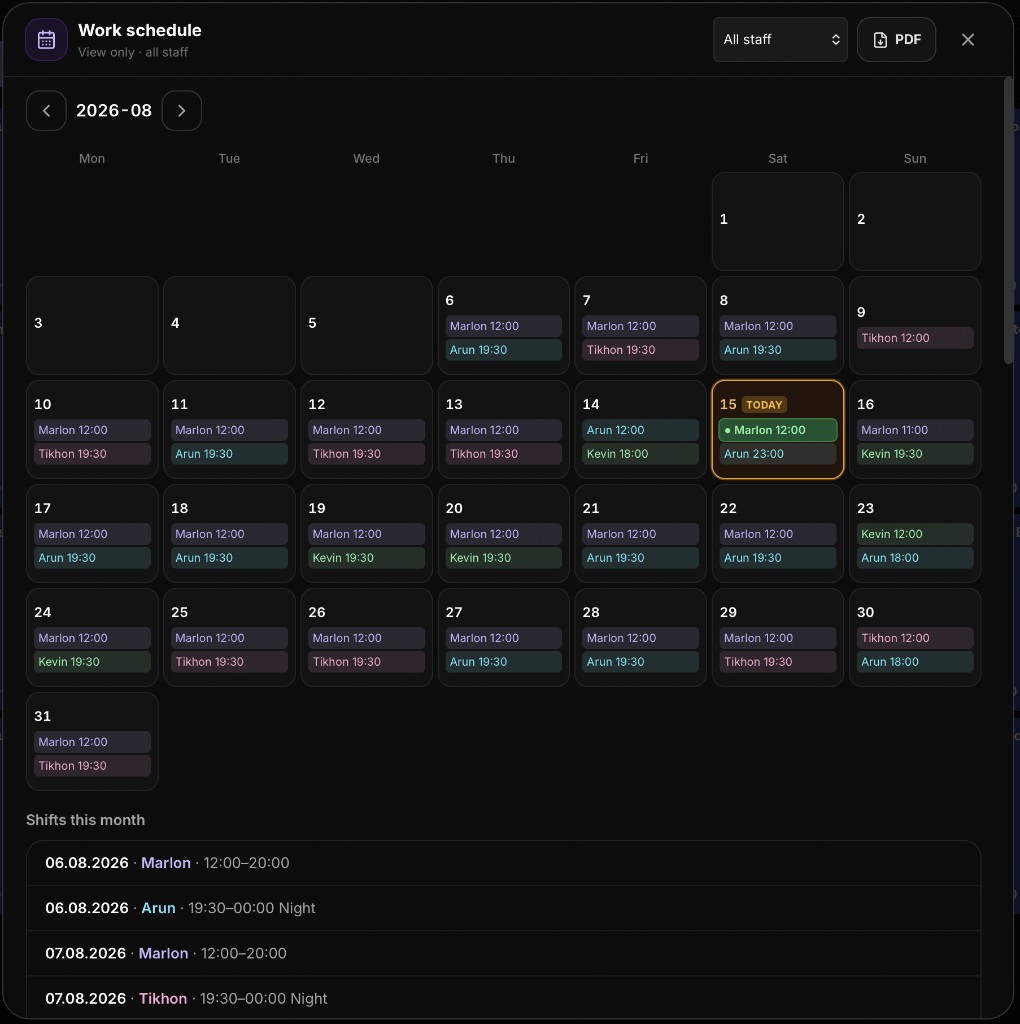
Work schedule from POS
Table service — Hold on the floor map
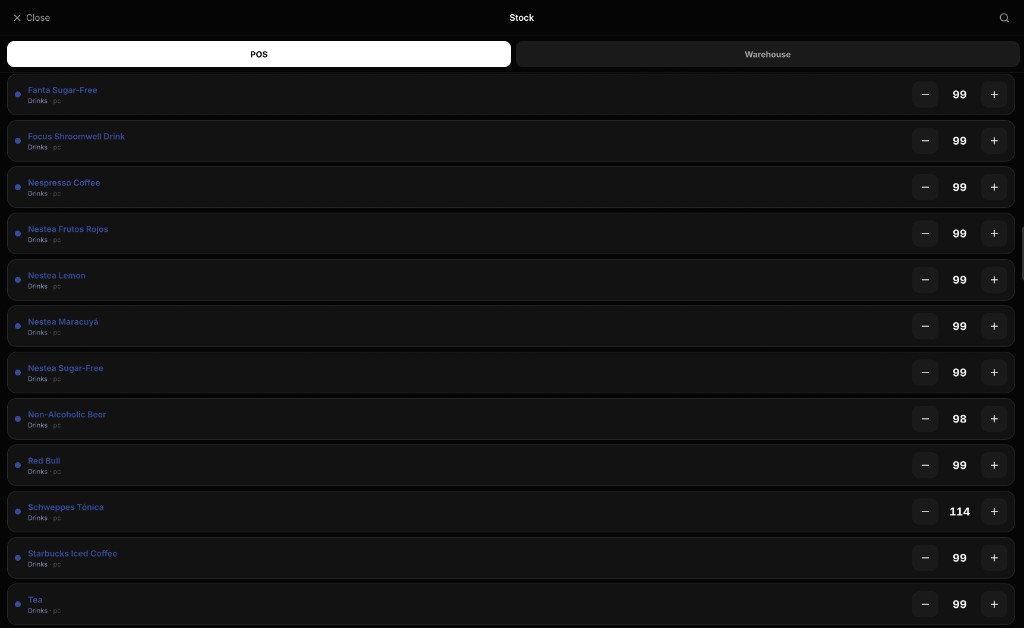
Stock — POS counts (±)
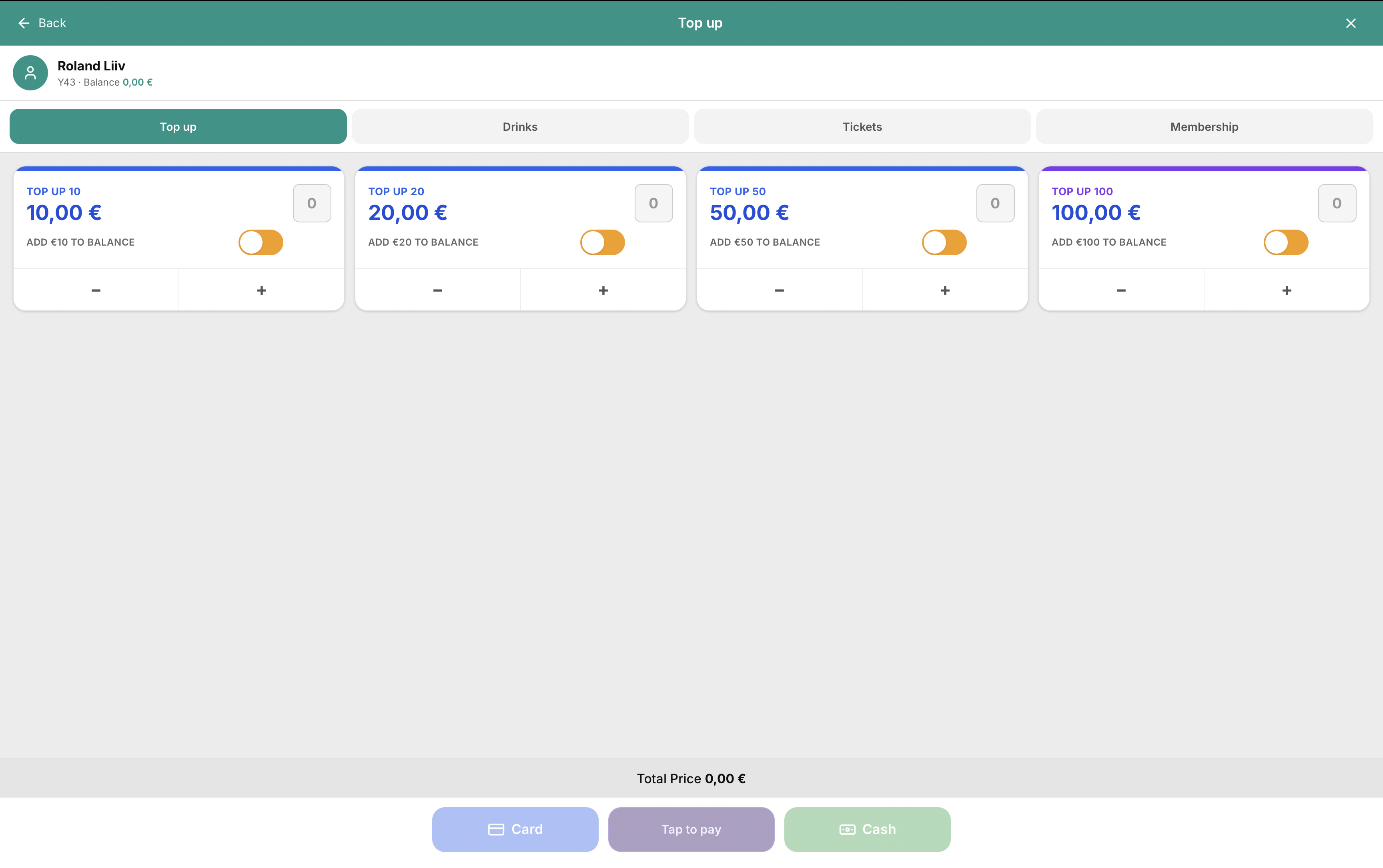
Customer offers / top-up from the till
Find customer — scan QR or search
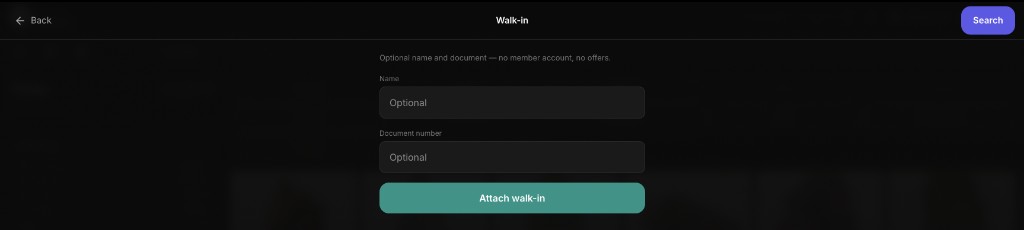
Walk-in guest on the till
Request a demo

Ready to run your venue with Hubumo?

Tell us about your venue, your locations, and what you want to improve. A member of the Hubumo team will contact you shortly.

Fields marked with * are required.

By submitting this form, you agree that Hubumo may use your information to respond to your enquiry. See our Privacy Policy.

Hubumo

Explore more modules