Home and orders
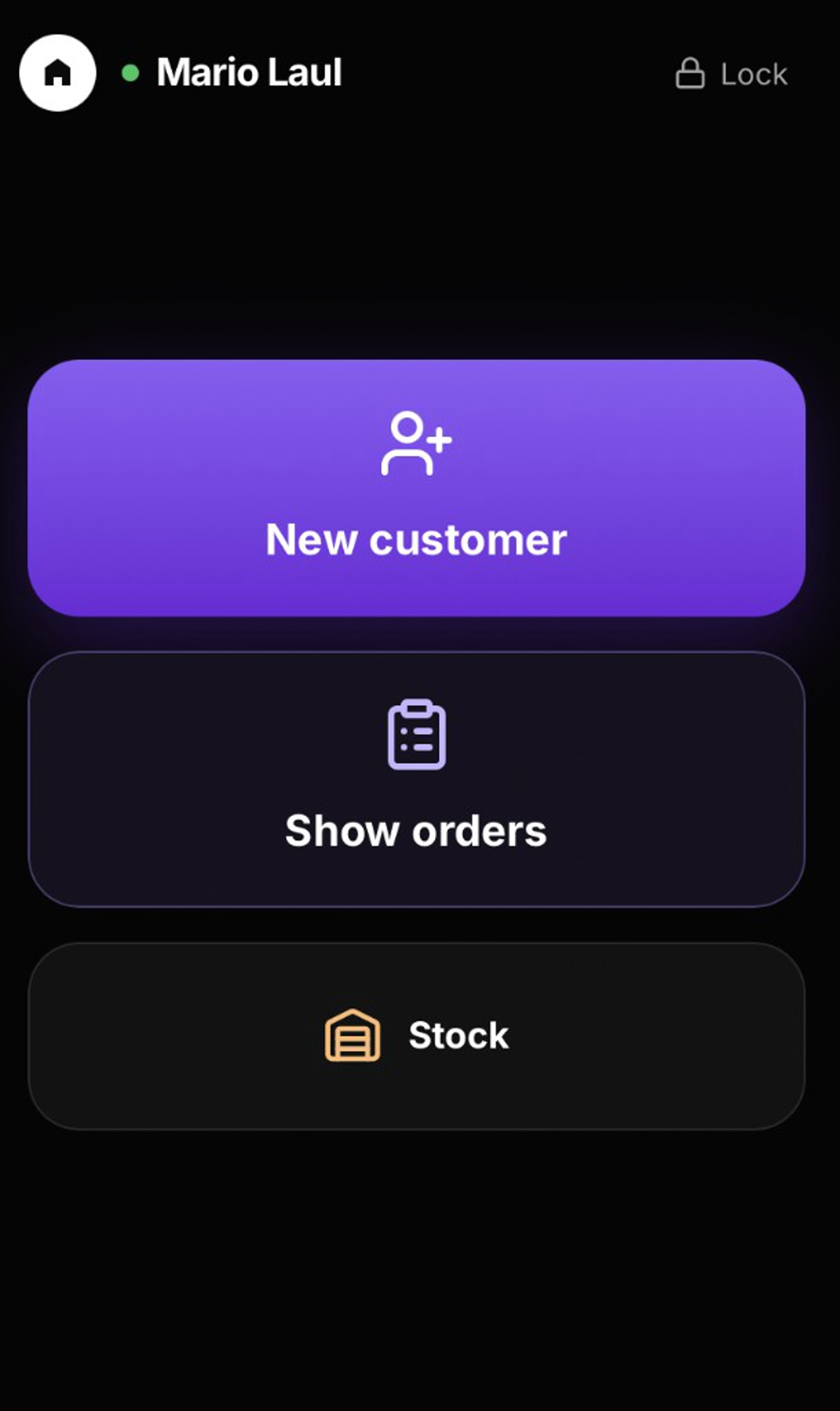
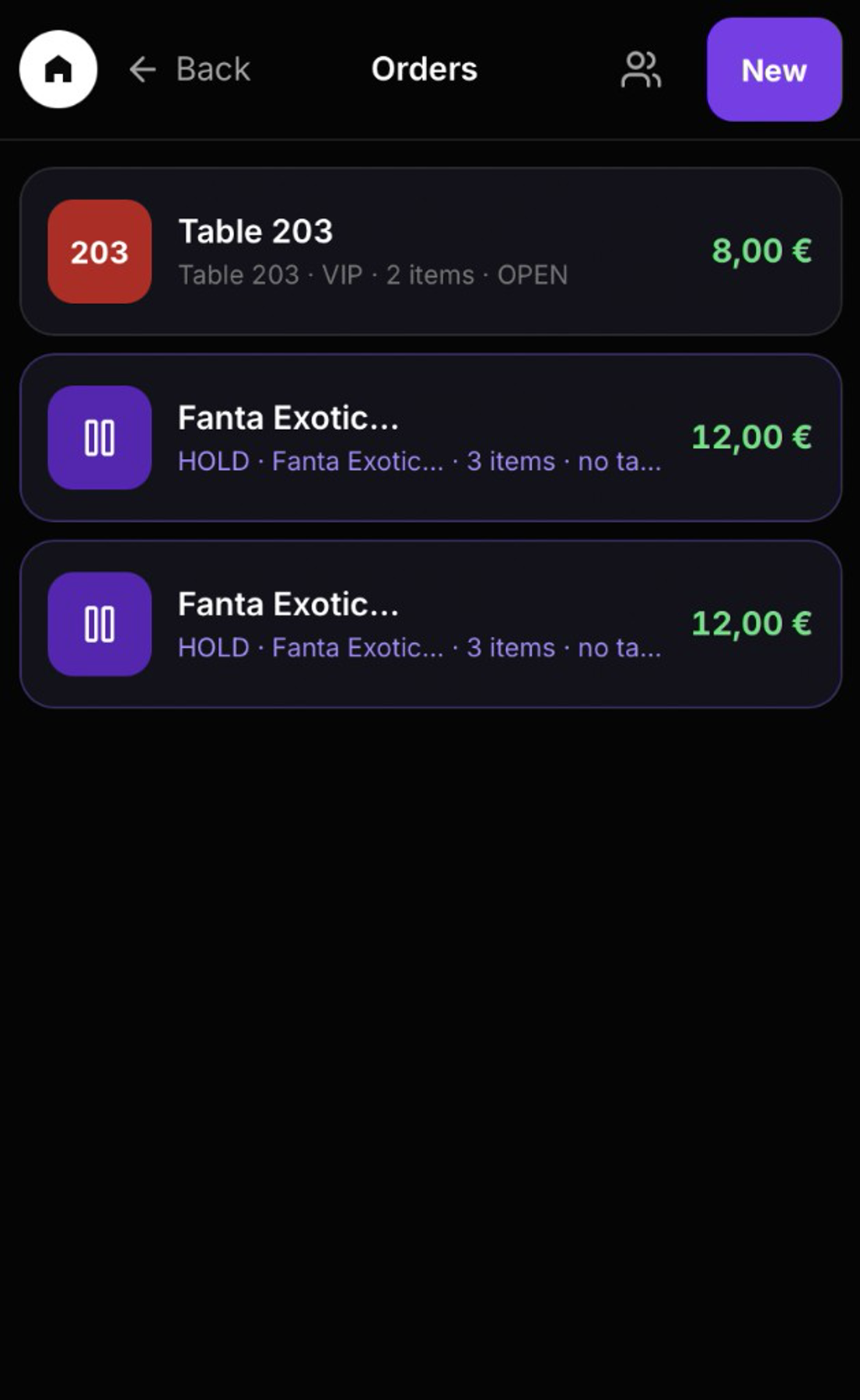
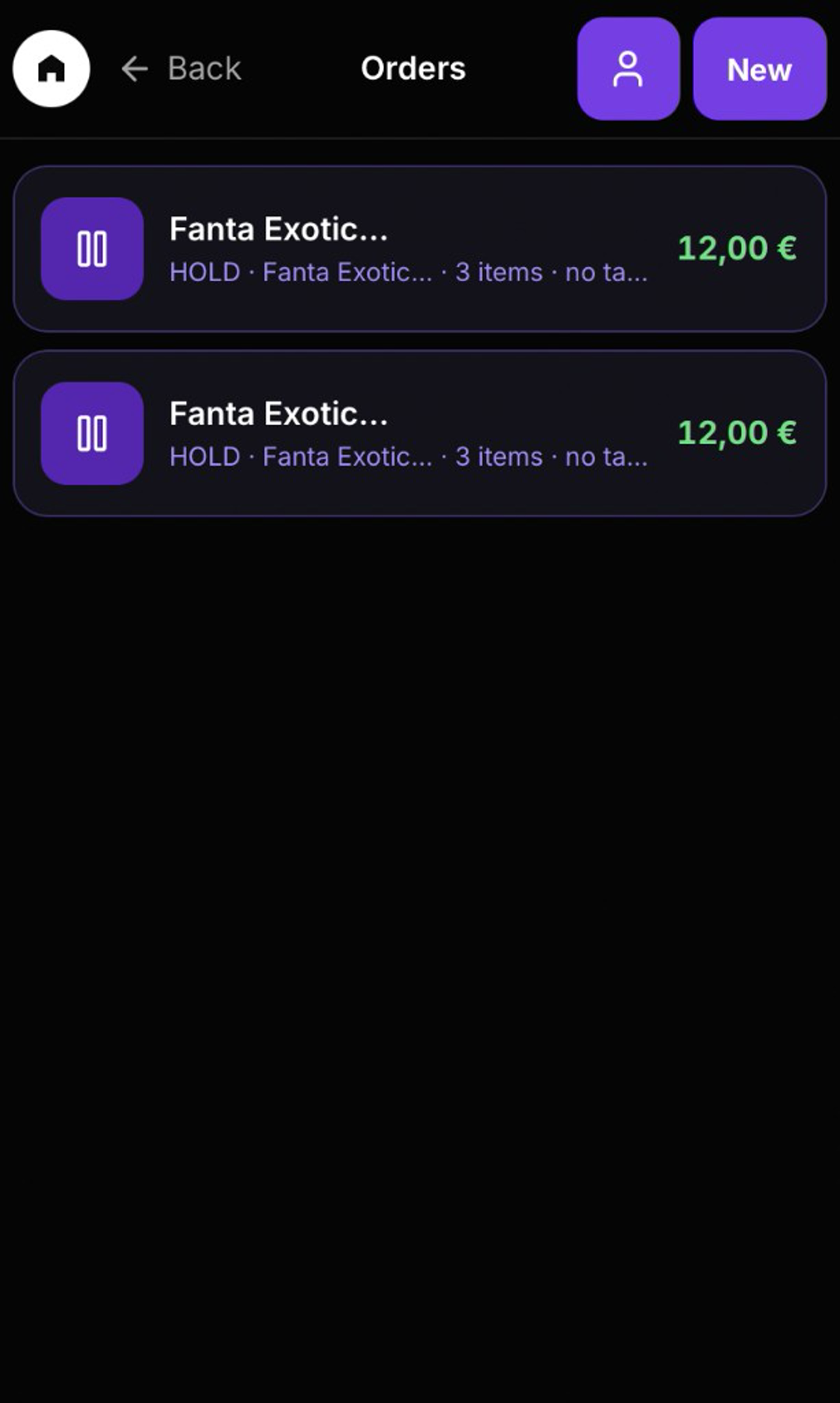
After unlocking the app, the Home screen provides access to new customers, orders, and stock. Show Orders lists open tables and held carts with item counts and totals, allowing staff to continue an order or complete payment.
Waiter is a mobile app for floor staff on a phone or tablet. The Home screen provides access to New Customer, Show Orders, and Stock. Staff can create an order by browsing the live Catalogue by category and product, then take payment by placing the order on hold, accepting cash or card, or using an available customer balance. Show Orders lists open tables and held carts with their totals. Stock provides access to POS and Warehouse inventory, including quantity adjustments. Waiter uses the same Catalogue, prices, promotions, and cash-register session as the Bar app. Optional NFC staff authentication and device pairing help secure the device.

Take orders, manage tables, process payments, and check stock from a mobile device.
After unlocking the app, the Home screen provides access to new customers, orders, and stock. Show Orders lists open tables and held carts with item counts and totals, allowing staff to continue an order or complete payment.
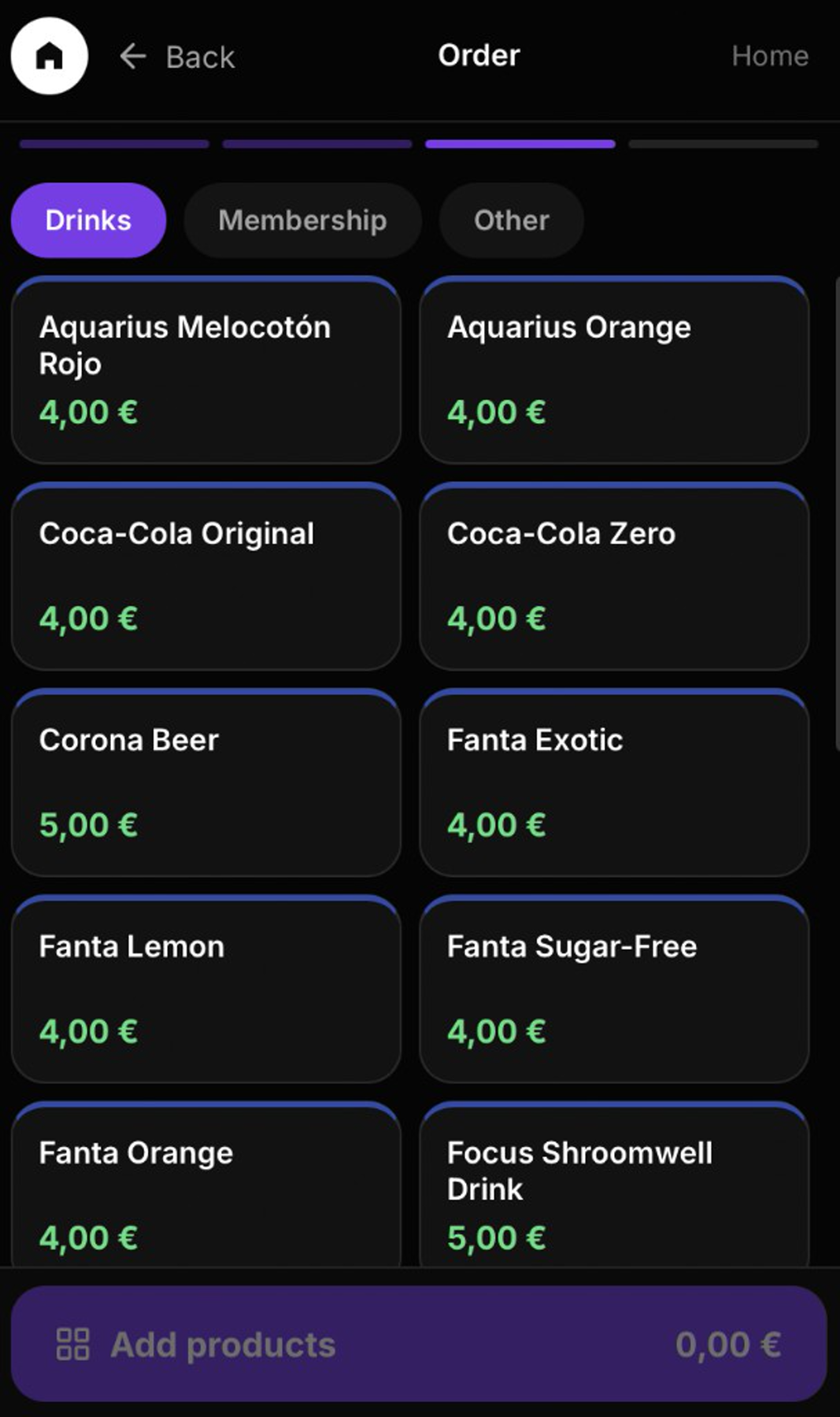
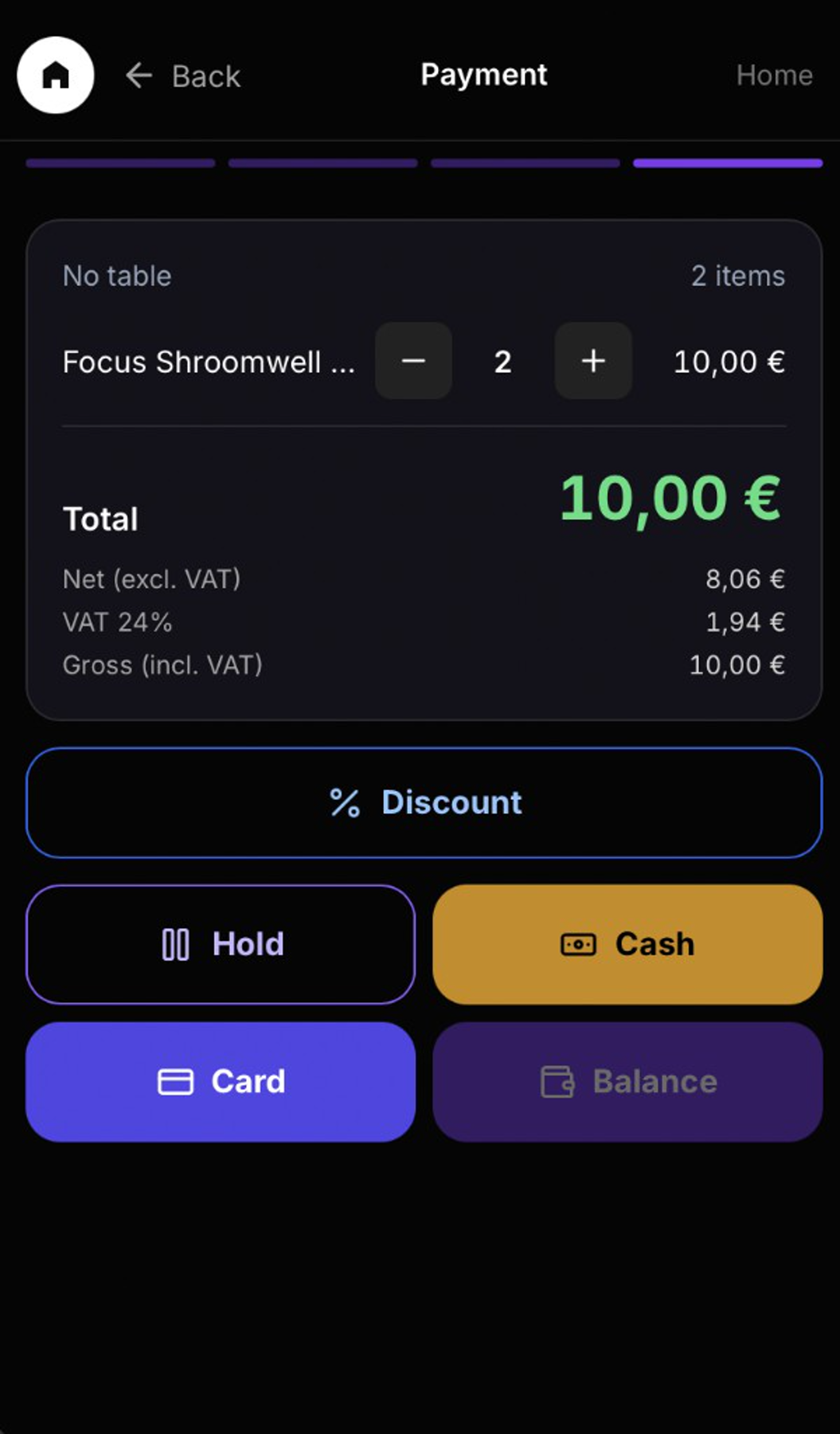
To create a new order, select a category, choose the products, and open Payment. Select Hold to save the order for the Bar, or complete the sale by choosing cash, card, or an available balance. Cash payments require an open cash register. Discounts and VAT details follow the same rules as the POS.
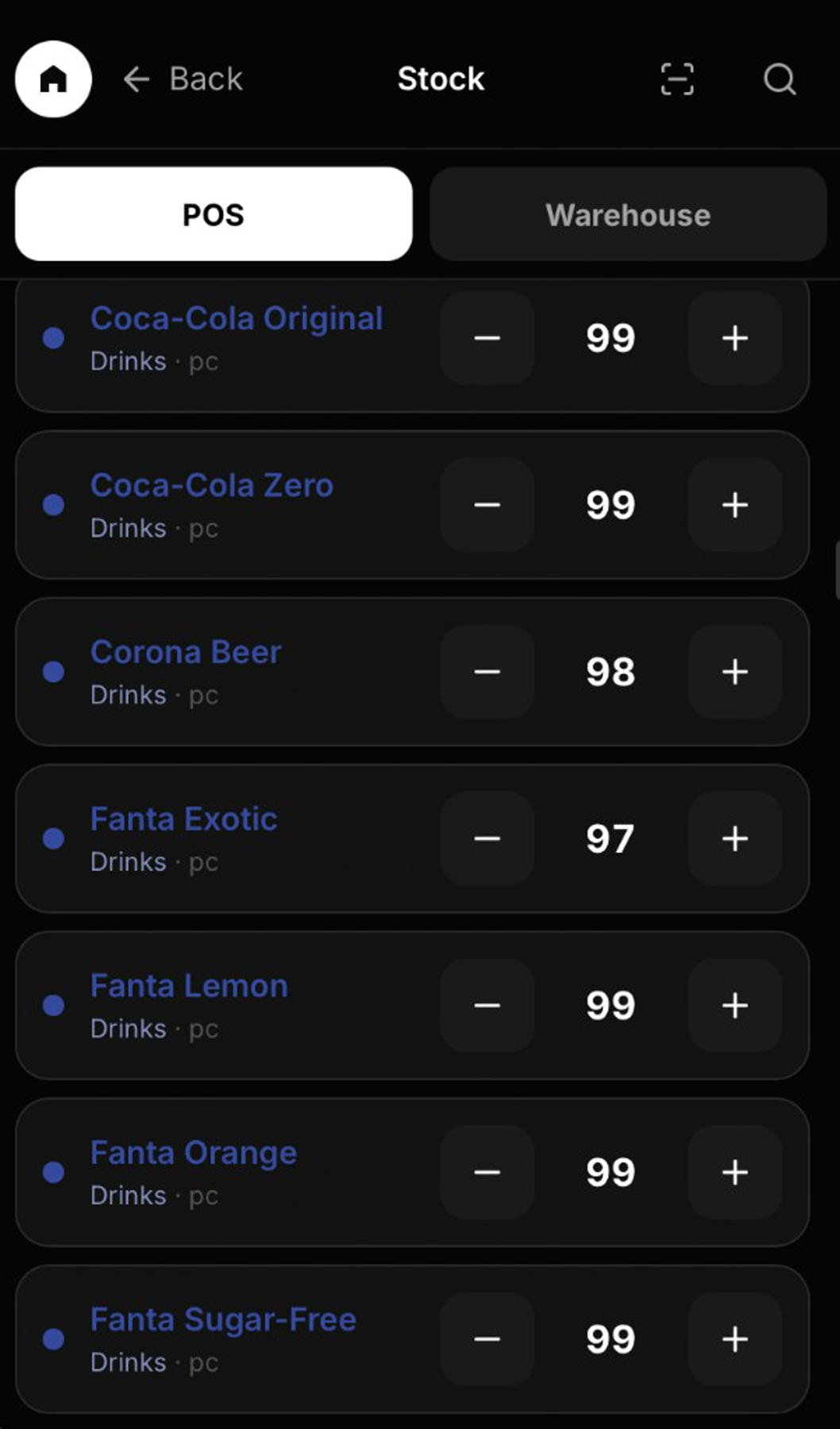
Floor staff can adjust inventory quantities between POS and Warehouse using the plus and minus controls. The same inventory figures are shared with Manager and the POS.
Unlock the Waiter app — Enter the staff member's PIN or use authorised NFC authentication on the Waiter lock screen.
Create a new order — Optionally select a table and member, then add products to the order.
Save the order for the Bar, or complete it by choosing cash, card, or member balance.
Manage orders and inventory — Resume held orders or open tables, or adjust inventory quantities.
Real Hubumo screens from this module — each image shows a distinct workflow, not a repeated shot.
Tell us about your venue, your locations, and what you want to improve. A member of the Hubumo team will contact you shortly.