One person, one access pass
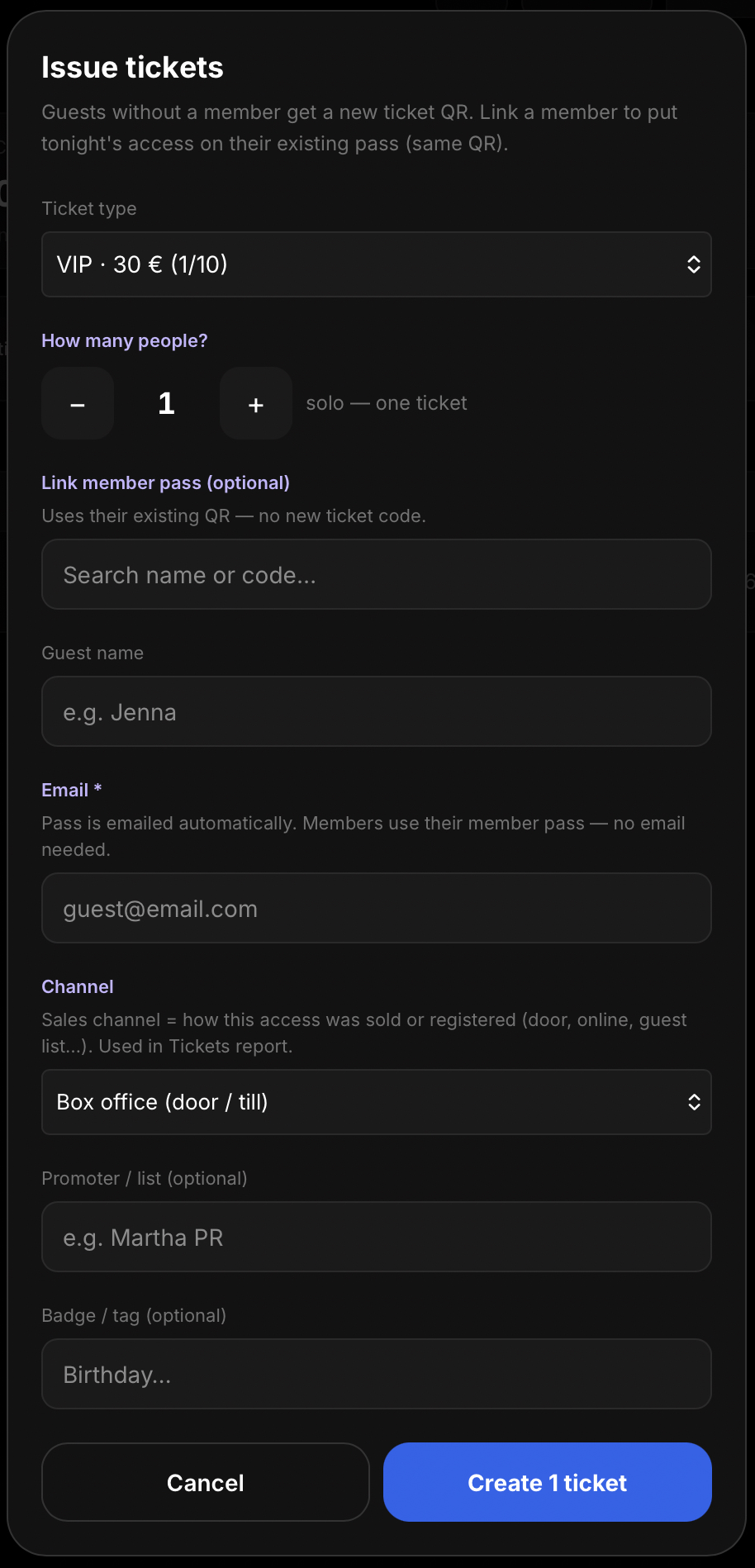
Guests receive a new ticket and QR code. Members can use their existing pass, with the event added to the same QR code. The Create button shows how many tickets will be issued.
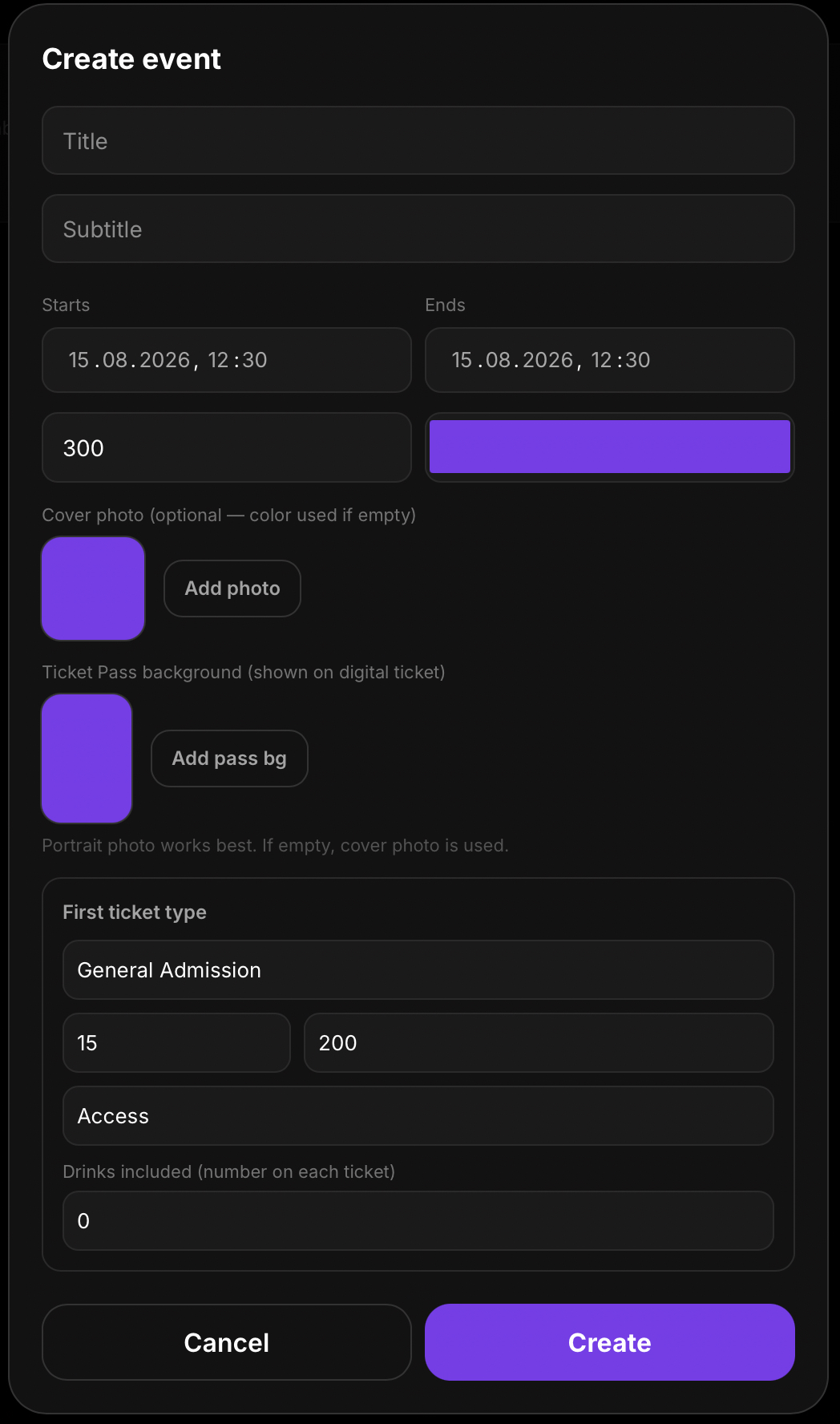
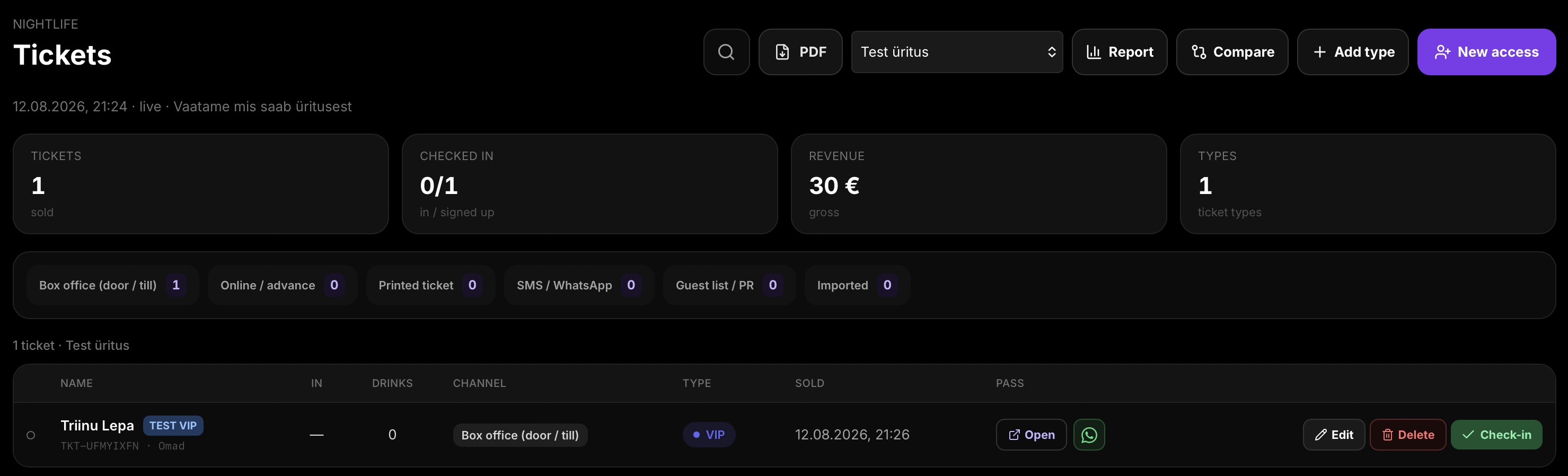
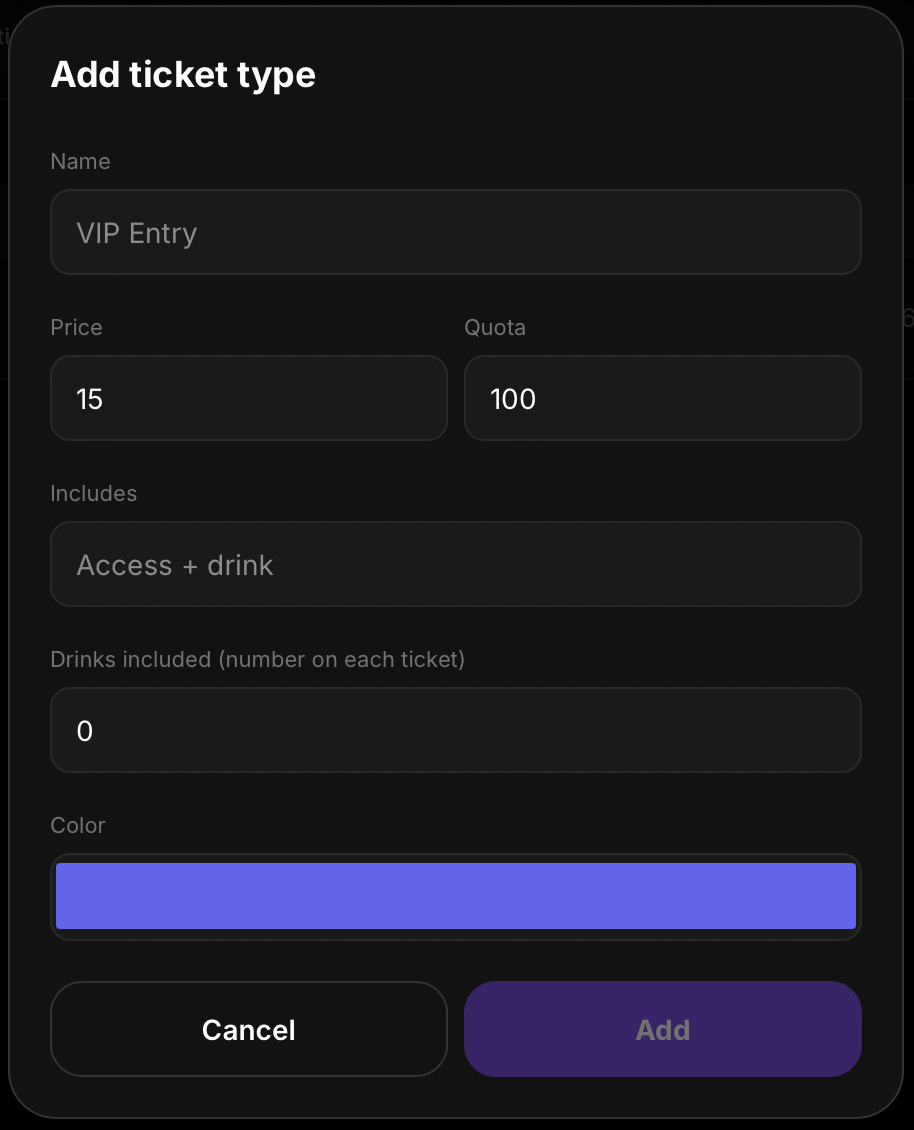
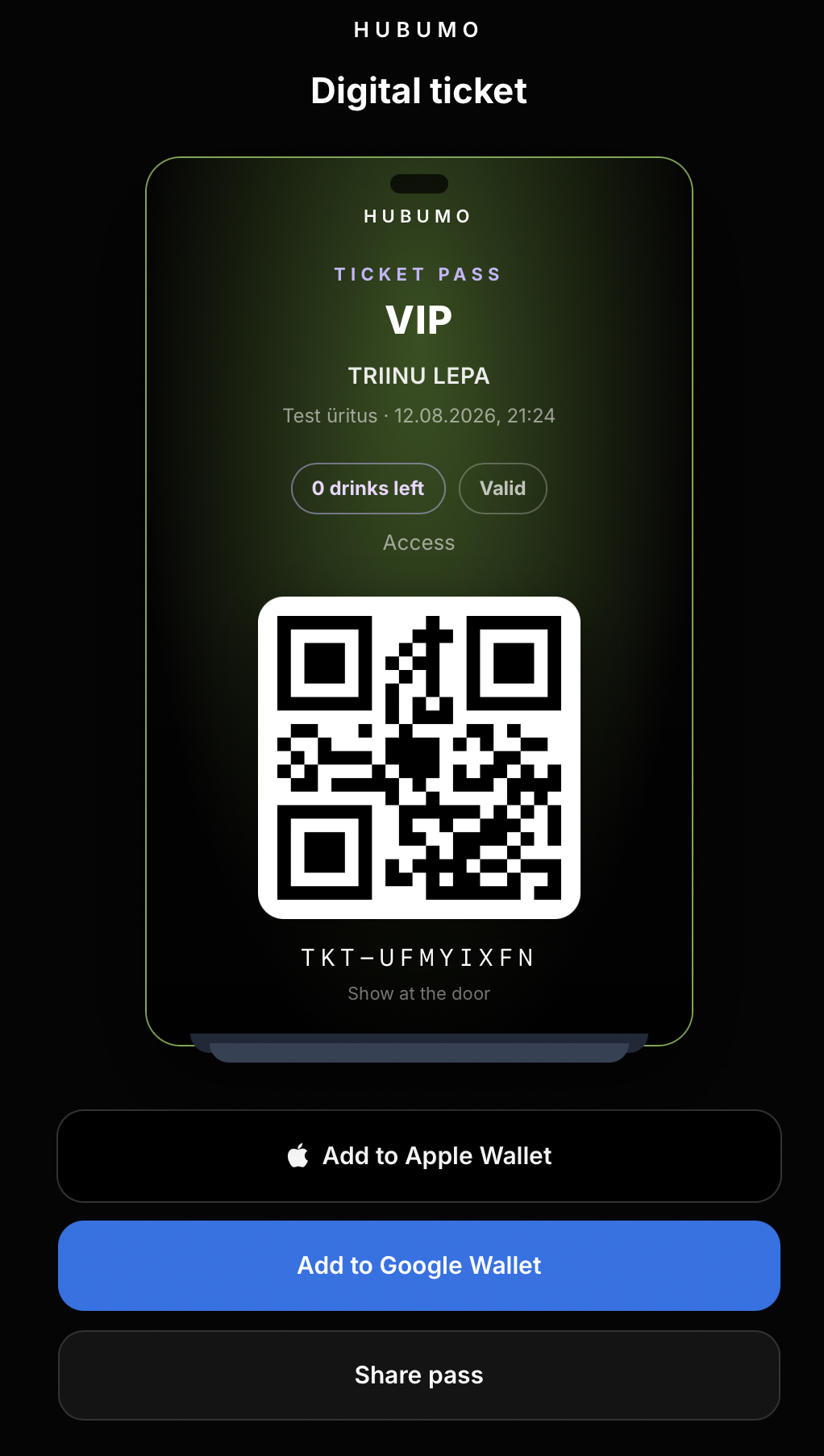
Create an event with title, schedule, capacity, cover image, Ticket Pass background, and a first ticket type. Add more types with name, price, quota, inclusions, included drinks, and colour. On Tickets, review KPIs and sales channels, then use New access or Issue tickets to link a member pass or create guest tickets with email, channel, promoter, and badge. Guests get a TKT- digital pass for Apple Wallet, Google Wallet, and Share; members reuse their existing pass QR. Check guests in from Manager or the Door app.
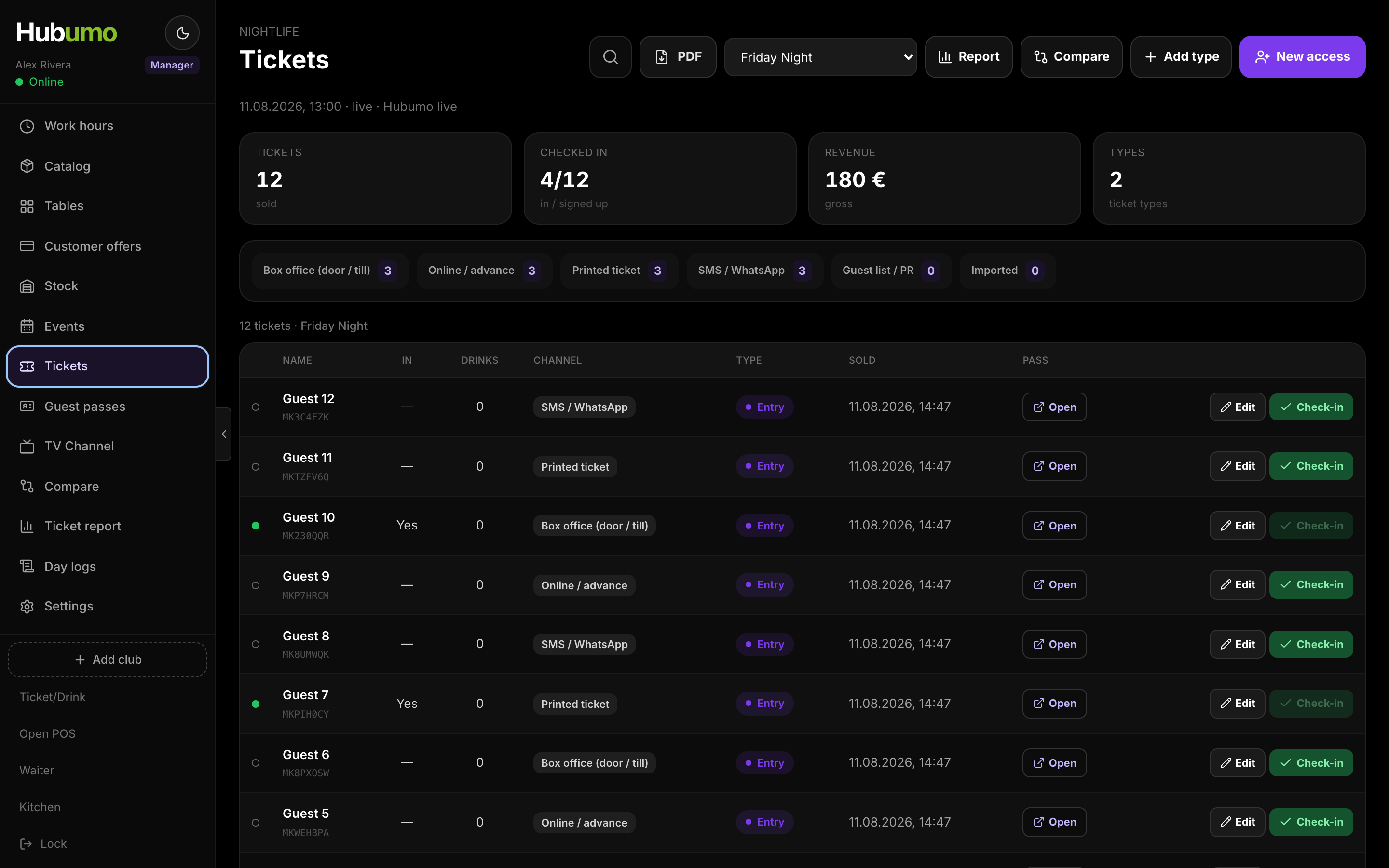
Create events, issue tickets, and check guests in — from Manager to the door.
Guests receive a new ticket and QR code. Members can use their existing pass, with the event added to the same QR code. The Create button shows how many tickets will be issued.
Opening the digital ticket pass shows the ticket type, guest name, event, remaining drink entitlements, validity status, access QR code, and TKT- ticket code. The pass can be added to Apple Wallet or Google Wallet, or shared with the guest.
In Manager, go to Events → Create event.
Select Add type, then enter the ticket name, price, available quantity, inclusions, and included drinks.
In Tickets, select New access to link a member or Issue tickets to create guest tickets.
Open the guest’s digital pass or use the Door app to scan the access QR code.
Real Hubumo screens from this module — each image shows a distinct workflow, not a repeated shot.
Tell us about your venue, your locations, and what you want to improve. A member of the Hubumo team will contact you shortly.